
Updated February 2024
In this tutorial, I'm going to show you how we can add an Elementor button that will toggle the visibility of any other element, including container and sections.
You can think of it as turning any Elementor set of elements into a toggle.
Here are are a few demos of what you will learn in this tutorial:
Features:
- Works with all elements
- Compatible with sections and containers
- Easy setup
- Flexible
- Accessible
Let's get started!
First, let's setup the class names for this Elementor show hide design
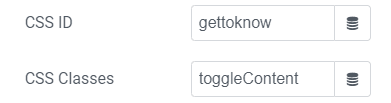
Every 'toggle set' will need one (and only one) element with the class name toggleElem, and one (and only one) element with the class name toggleContent.
You can have multiple such toggle sets on your page (as seen in my examples above).
Give them the required class under Advanced > CSS Classes


Ideally, you would probably want to use the button element as toggleElem, however any element will work.
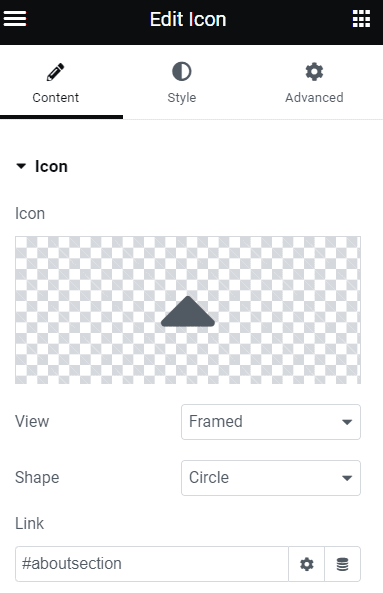
To make this accessible, be certain that you have the "#" in the link field of your toggleElem element.
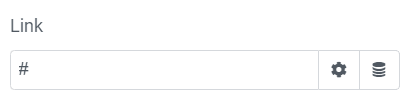
This goes if you are using an entire container as toggleElem, you will want to go under Additional Options > set the HTML tag to <a>, and then enter '#' in the link field. Be careful not to have any other elements within that also has <a> tags then.
Adding "closing" buttons
This is optional.
If you would like, you can add buttons (or any element really) within your toggleContent container or section, that when clicked on, will close the toggleContent.
Give them the class name toggleClose.

Important: if you choose to add closing buttons, you will need as many on your page as you have toggleElem and toggleContent elements. Say in total you have 10 toggleElem and toggleContent elements on the page, you will need 10 toggleClose elements as well. Point is, you can't have it just for some and not for others.
Now, let's add the code to your page
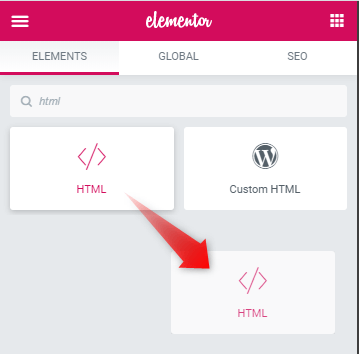
Add the code below in an HTML element, on the same page as your Elementor Show Hide Container (or other) is.
<script>
/* Please login to get the code
 * The code will be for the Amazing Elementor Show Hide Section Button tutorial
 * Found at this URL https://element.how/elementor-show-hide-section/
 */
</script>
Note that the code will automatically take care of hiding the toggleContent on the front end.
That way, you don't have to mess with the responsive settings, and then have to remove them all when you need to make an edit in one of the toggleContent container or section.
It will produce a small flash on page load though, but it should be barely visible, and even then only if you have this above the fold. Ideally it would be below the fold (i.e. below the part of the page that's visible on page load).
In this version of the code I also added support for Elementor popups. So you can have this custom toggle inside a popup as well.
How the code works
You might be wondering, how does this toggleElem knows that it should open that toggleContent. Good question!
It works with the index. In other words, when it shows up on the page, or more technically, in the DOM / source code.
So the very first element on the page with the class toggleElem with automatically be linked with the very first element with the class toggleContent (and if used, toggleClose). Element 2 with class toggleElem will be linked with element 2 with class toggleContent, and so on.
Adjusting the code
The JavaScript part should be left as is (except if you want an accordion, see below). Towards the end of the code there is some CSS, you might want to adjust it, in particular the transition for the icon in your toggleElem.
Making it an accordion
If you would like only one toggleContent to be open at a time, in other words for your set of custom toggles to behave like an accordion, change these two lines:
<script>
/* Please login to get the code
 * The code will be for the Amazing Elementor Show Hide Section Button tutorial
 * Found at this URL https://element.how/elementor-show-hide-section/
 */
</script>
to
<script>
/* Please login to get the code
 * The code will be for the Amazing Elementor Show Hide Section Button tutorial
 * Found at this URL https://element.how/elementor-show-hide-section/
 */
</script>
Adding anchors to the Elementor Show Hide Toggles
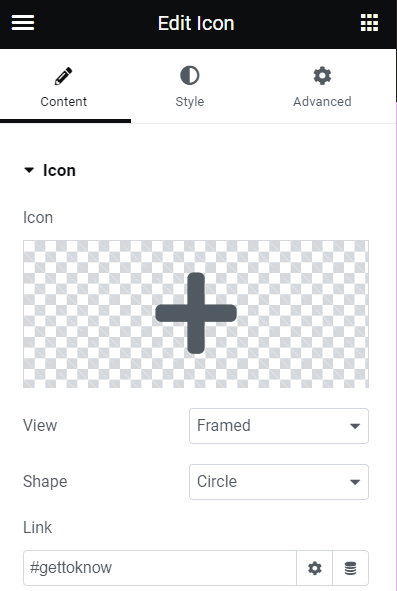
If you would like to replicate what you see in the example that's showcased in the fancy iframe 2 above, where it automatically scrolls to the opened toggleContent and then back up when you close it by clicking a toggleClose, it's quite simple.
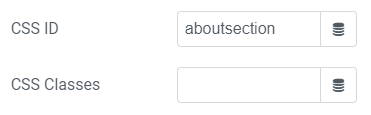
You just need to add IDs to your sections / containers, and then link to these in the toggleElem and toggleClose elements.
Finally, enjoy your Elementor Show Hide Anything toggles!
I hope you have enjoyed this tutorial!
Be careful going through the comment section and trying to make modifications from the comments you find there, as it was using an older version of the code. I completely rewrote the code in April 2023 so check the comments from that date forward!
Cheers!
465 Responses
Hello, thank you for this great piece of code!
Is there a way to make a section closing when another is being opened?
Angelo.
Hey!
Yes. Simply add this line:
$(this).closest('.elementor-section').next().next().slideToggle();Right below the very similar line that's already there:
$(this).closest('.elementor-section').next().slideToggle();Then, the two sections following the trigger will toggle visibility. You can hide one of them by default, to switch in between them.
Hi Maxime! Your solution was exactly what I was looking for, thanks!
One question: instead of rotating, how can I replace the icon when the corresponding section is open? I'd like to turn a menu burger icon into an X icon.
Best,
Paulo
Hi Maxime, this wonderful script works great on Sections but not on Inner Sections. Does the code need updating possibly?
Hi Maxime, thank you for this code. works good for the most part! would appreciate if you could give me some hints on how to make the script only appearing for Mobile and Tablets. i want to hide it completely on desktop. the issue is that when i click to show the sections on small sized window and i dont click it again to hide it, and then resize the window back to full screen, the section is still there, even if its suposed to be hidden in desktop view. ( note that the section is hidden for desktop portview in elementor, of course.) i tried to find a jquery that would allow me to only run the script for certain screen sizes, but havent been able to find anything.. i hope you can understand what i mean?
sorry if im being needy, i ve spent literally a whole day fiddling with this, and im geting desperate hehe.
take care
Hi Maxime,
Great tutorial!
I'm struggling to display all inner sections (4 in total) underneath the icon with one click and collapsing them with the close button.
I've read through your comments and found a possible solution where this modified script seems to be what I'm looking for (below) but it's not working for me.
Please can you guide me on what's going wrong,
Thanks
document.addEventListener('DOMContentLoaded', function() {
jQuery(function($){
$('.showme').click(function(){
$(this).closest('.elementor-section').next().slideToggle();
$(this).toggleClass('opened');
});
$('.closebutton').click(function(){
$(this).closest('.elementor-section').prev().find('.showme').click();
});
let opened = false;
$('.toggler').click(function(){
if (!opened){
$('.showme').closest('.elementor-section').next().slideDown();
$('.showme').addClass('opened');
opened = true;
} else {
$('.showme').closest('.elementor-section').next().slideUp();
$('.showme').addClass('opened');
opened = false;
}
});
});
});
.showme a , .showme i , .showme img, .closebutton a, .closebutton i, .closebutton img{
cursor: pointer;
-webkit-transition: transform 0.34s ease;
transition : transform 0.34s ease;
}
.opened i , .opened img , .opened svg{
transform: rotate(90deg);
}
Great article very happy 🙂
Welcome!
Hi. It works with the new containers?
Hey Raul! Here is the code for the new containers. You will have to give the class name toggle-slide-container to the container you want to toggle on click of the button.
<script> document.addEventListener('DOMContentLoaded', function() { jQuery(function($){ $('.showme').click(function(){ $('.toggle-slide-container').slideToggle(); $(this).toggleClass('opened'); }); }); }); </script> <style> .showme a, .showme svg, .showme i , .showme img, .closebutton a, .closebutton i, .closebutton img{ cursor: pointer; -webkit-transition: transform 0.34s ease; transition : transform 0.34s ease; } .opened i , .opened img,.opened svg{ transform: rotate(90deg); } </style>Hi Maxime, thank you for great content, much appreciated!
I just tried this code for Containers but was wondering if it is possible to tweak the code so it's behaving like the original Code, meaning that the button will only show/hide the container right below it. Because now both my containers open at the same time 🙂
All the best, Tone
Hey Tone!
I updated the tutorial with the code for the containers. It's closer to the original code for the sections, however the new container code will disregard any inner container. It will only toggle first level containers, which in most cases is what people are looking for.
At some point I will come out with a more advanced tutorial with very granular controls for this kind of design...
Cheers!
Hey Maxime,
Thank you for your incredible work that is so helpful to so many!
I tried to use the new procedure for the container but it seems i m a bit confused.
- First i need to create a container with copy/past the code above into a HTML widget?
- Second, i need to create a container right below the container that contains my button/icon? Question : is it in the CSS class of that container that i need to add " toggle-slide-container" ?
- Third, i need to to add "showme" in the CSS class of the mentionned button/icon ?
Am i missing something or doing something wrong?
Your name sounds french so i ll risk a "merci beaucoup et d'avance pour ton aide!"
Bien à toi ,
Update : it works, i had not refreshed my page in my browser! Thanks again!
Welcome Mag!
Hello Maxime! Thanks for your work.
I have a question, I run the HTML code with a button so that a section opens.
But when I click on the button again, the section closes.
How can we make it so that once the section is open, it is open all the time?
Hey Julie!
To do this, change
slideToggle()
to
slideDown()
in the code.
Also change
toggleClass
to
addClass
And then it should work as you want!
Cheers!
Nice it's working, thanks!
Hi Maxime! Thanks for this code. But I do have a question though.
Is there a way to save the last event? For example if click on the button and it shows the section then after I refresh the page, is there a way to keep it that way?
Hope to hear from you. Thanks!
Hi Maxime,
It works great! But unfortunately when i use the button and empty the link field, the button is not selectable using tab / shift tab for accessibillty. Is there a way to fix this?
Thanks!
Hey Ruben!
Great question. Yes indeed it is possible. I have updated the code provided in the tutorial to allow having a "#" in the link field to keep the inherent accessibility features of <a> elements in place.
Cheers!
Hi Maxime,
I'm seeing a repeatable bug in the end result using the show/hide section and I'm having trouble figuring out a solution despite knowing the cause. Apologies if this has already been discussed in the huge number of responses.
The section I am revealing with the button is first displayed offset by half a screen width to the right. As soon as I resize the browser(Chrome) slightly, the section immediately centers correctly. From then on the section open and closes centered.
But if I refresh the browser, the first reveal is once again offset to the right by half a screen width.
I believe it something to do with this section being stretched to full page width using the 'Stretch Section' toggle in the layout options. I know this because if I turn this stretch section option off, the problem disappears.
Any ideas how I can choose to use this 'stretch section' option but have the revealed content remain centered upon first look?
Any help appreciated.
Thanks in advance.
I found a solution. The WP theme was causing the issue. When I set the page to Elementor Full Width, the issue is fixed.
Thanks
Great, glad you managed!
Hi Maxime/others,
I am new to Elementor, and I have been looking at many of the answers above, but I don't seem to find what I need help with.
I am creating a portfolio (3 projects per row, many rows), and the idea is that when you click on one project "A", below a section opens displaying the images and the text related to "A". If you press any of the other 2 projects (let's say "C"), "A" closes and in the same place the section for "C" opens.
And this happens on each row (projects D to F, G to I, etc).
I believe I need to create a section for each project, but what CSS ID and CLASS shall I use? Do I need to create an HTML code for each section?
By the way, I am no coding programmer.
Thank you in advance.
Hey Ali!
I understand exactly what you are looking for... I coded something similar for a client here: https://web.archive.org/web/20200807205330/https://www.travelandtransport.com/our-people/
It's a more complex design that requires very specific code and setup, out of scope for this current tutorial. However I will likely make a premium tutorial at some point about replicating this kind of design. Stay tuned! If you need this sooner, you may reach out to me for custom work.
Cheers!
Hi Maxime,
Thanks so much, I've been able to add it to my site successfully.
I have added this as a search bar that appears on click in a sticky header on mobile view only. The problem I'm having currently is that the hidden section doesn't stick with the header section (despite section being set as sticky) on scroll. So when I've scrolled down and click the search button, the hidden section opens back at the top of the screen. I hope that makes sense...
Is there a solution for this?
I'm so lucky to find your website & thank you for this amazing tutorial. Btw, can I make a 'read less" button at the end of the content while still keep 'read more' button at the beginning?
Hey Tuans!
Yes certainly, as written in the tutorial: if you want a close button in one of the expanded section, simply give it the class 'closebutton'.
Cheers!
Hello Maxime
Thank you so much for this awesome tutorial. I just added it with a button but for some reason it doesn't work for me. Not sure if I am missing anything or a step?
Added the 'showme' class to the button, added the html element with the code for containers (as I have containers enabled) and hid the container with the 'hidden' content. Nothing happens when I click on the button.
https://stierli-architekt.colorit.ch/projekte/bremgarten-wohnhaus
The button is the '-> Projekt Daten' about half way down the page.
Hey Corina!
I had a look and I can see that your containers are all within a single parent container... the code won't work in that way. The container that you want to be expandable and collapsible needs to be 'first level' and not within another container for this to work.
If you can't change your layout, use this tutorial instead, it will work: https://element.how/elementor-premium-expand-collapse-toggle/
Cheers!
Hello Maxime
Thanks heaps. I purchased the tutorial and implemented it, but when I click on it, it opens the container more but it also jumps to the top of the page.
Also, I set it to not preview any text (ie 0px) but it still shows a preview.
https://stierli-architekt.colorit.ch/projekte/bremgarten-wohnhaus/
Appreciate any additional input.
Cheers,
Greetings Corina,
Thank you for the purchase.
I updated the code to prevent the scrolling back up to the top of the page, please import the code again.
For the preview, please set the padding top and bottom on your container to 0. Add top and bottom padding to the element within the container to replicate the same layout.
Let me know if that all works!
Cheers!
Thanks heaps Maxine
For some reason, it now no longer works. I did the following
— Added code from Tutorial (I assume updated version as today's date)
— Removed the padding from the container
— Cleared the cache
It is now not hiding the content at all and still jumps to the top of the page when clicking on the button.
https://stierli-architekt.colorit.ch/projekte/bremgarten-wohnhaus/
Thank you.
There is a small error in the code you modified, you have :
let defaultPreviewHeight = 0px";
Should be
let defaultPreviewHeight = "0px";
Cheers!
AWESOME and so superfast. Thanks so much Maxine.
Question. Is it possible to have several of these show/hide containers on one page? My client might want a second one.
Thanks and truly appreciate your help.
Cheers,
please disregard my question... all good and massive thanks for your help.
all the best,
Welcome Corina!
Hi there,
Thanks for the helpful article. Is it possible to hide/ restrict some of the content (a section or a few sections) and show it after a form submission? Very similar to the effect you are using for your code snippets, however instead of login to be shown after form submission.
Couldn't find such tutorial. If you have a solution somewhere I'd be super super thankful to see it.
Thanks so much!
Greetings Rumyana!
Try with the following tutorial, and a redirection on the form submit! Add the proper ?query=url to the page on redirection.
https://element.how/elementor-show-hide-anything-based-on-url/
Cheers!
Hello Maxime,
really great stuff!
Havig a problem with "image-carousel" - it does not work in a hidden container 🙁
and the "closebutto" leads to top of the page and not to the top of the hidden container.
Any advice how to fix it?
Many thanks i advance!
wbr
anton
Hello Anton,
You will have to show it by default. Otherwise the JS calculations can't be made if it's set to display:none; .
I updated the code to fix the issue with the closebutton.
Cheers!
Hello Maxime,
thanks for the quick reaction.
The updated code for the button works fine in Firefox, "image-carousel" works with FF too.
In Chrome and Edge clickon button still leads to top of the page, the carousel does not appear in correct size and does not work eventhough the same code as in FF is used.
You may check it out on https://www.xn--knigspudel-ecb.at/_tester_00/.
Sorry for late reaction, but I wanted to test correctly, thats the reason for delay.
Hope I ca help you by improving your greate app.
Very best regards!
anton
Hello Maxime,
after along while of waiting the carousel started in both Chrome and Edge.
Misterious, is'nt it?
wbr
anton
You are a mind reader. this is exactly what I was after. Thank you so much
Hi Maxime,
great tutorial but it would be bestest of all if it would allow text of 'ToggleElem' button to change ( https://c2n.me/4ioQrAt.png ), e.g. 'more' to 'less' etc. It would be right for good UX. Thanks.
Hey Alex!
I dont' think I will add this to the current tutorial... as I give the option to use any element as trigger, and for UX we have the icon rotation...
However, I have a similar premium tutorial that is more feature rich where you can also change the text: https://element.how/elementor-premium-expand-collapse-toggle/
Cheers!
Hi Maxime, great tutorial, as always!
I tried to adapt this code to a situation I need but without success.
The idea is to have a button that opens more buttons when clicked (with anchor links to the page) and I would like that when you click on one of those secondary buttons, besides navigating to the anchor on the page, closes the content as it was at the beginning.
I did the tutorial and tried to put a button on the content that appears hidden with toggleClose, but when it's inside the hidden content, it doesn't work.
This idea is because this block will float/sticky on the page and only be opened when the user wants to choose a link to another area of the page.
Is it some limitation of the code because it's inside the hidden content?
Is there a way to keep it inside (because I need the anchor links), but still be able to trigger the toggleClose trigger while navigating to the link?
Greetings!
Try changing this code:
closer.addEventListener('click', function (e) {
e.preventDefault();
toggles[i].classList.remove('toggleIsActive');
jQuery(contents[i]).slideUp();
});
to
closer.addEventListener('click', function (e) {
e.preventDefault();
toggles.forEach(toggle => toggle.classList.remove('toggleIsActive'));
jQuery(contents).slideUp();
});
you will need the toggleClose class on your anchor buttons!
Cheers!
Hi, and thanks for the fast response.
I changed the code as you indicated, but the "toggleClose" button is still visible even if you place it inside the "toggleContent" section, and in this case not even the "toggleElem" button works by opening the hidden section.
That is, both buttons are visible and neither of them does anything.
Hello Maxime,
I confirm, your code works like a charm: thank you very much for your tutorial!
My level of knowledge in jQuery being minimal, I have a small question: is it possible, and if so, what should be added to the code to allow the opening of a single "toggleContent"? That is, if I interpret your code correctly, that when clicking on "Open", the other "toggleContent" lose their "toggleIsActive" class?
A little clarification: I don't use any "closing" button.
On that note, to answer alexschneiderru's request, it is quite easy to change the text of a single button using css classes. The idea is to :
1 - Add a generic text to the button - "Open / Close" for example - and set the css to font-size: 0px;
2 - Use the pseudo CSS element ":before" by associating it with the active state of the button, i.e. :
For the text of the inactive button :
.elementor-widget-button.toggleIsSetup .elementor-button-text:before {content: "Open";}
For the text of the active button :
.elementor-widget-button.toggleIsActive .elementor-button-text:before {content: "Close";}
Adapting it to the actual structure you are using of course...
3 - Assign CSS rules to the pseudo ":before" element.
.elementor-widget-button .elementor-button-text:before {
color: #000;
font-size: 16px;}
or, by distinguishing the two states :
.elementor-widget-button.toggleIsSetup .elementor-button-text:before {
color: #000;
font-size: 16px;}
.elementor-widget-button.toggleIsActive .elementor-button-text:before {
color: red;}
Hoping this will help, without overshadowing Maxime of course 🙂
Best regards!
Hey Raphael!
Thanks for sharing the CSS to change the text content. It's a good idea.
I could also build the option in the JS and with an attribute, however I like to keep the free tutorials simple, and this one is complex enough already! But now the adventurous users will be able to use the CSS you provided. Thanks!
Regarding your question, change these two lines:
toggle.classList.toggle('toggleIsActive');
jQuery(contents[i]).slideToggle();
to
jQuery(toggles).not(toggle).removeClass('toggleIsActive');
toggle.classList.toggle('toggleIsActive');
jQuery(contents).not(contents[i]).slideUp();
jQuery(contents[i]).slideToggle();
Cheers!
You're welcome: it's normal and logical to participate a little... according to our means of course =) . You're right to keep the free tutorials simple, an opportunity to thank you again by the way. For the rest, it definitely works like a charm: thanks a lot Maxime ! 😉
Cheers and best regards !
Hi Maxime,
First of all, thank you for this fantastic piece of code! This really provided me with great opportunities in design. I now have one thing which goes a bit beyond this part but would still be amazing to implement in my site. As a navigation to my one-page site which is split into 5 foldable containers that open and close with your code I'm using elementor pop up as a sticky slide navigation: https://elementor.com/blog/how-to-create-sticky-sidebar-menu/
Hence there is a toggle on the right side always visible and when I click it a navigation bar enters from the right side. There is the whole menu visible which is exactly the structure of the 5 foldable containers which are linked to anchors in the main page. The navigation works very well if multiple containers on the site are "folded open" but of course, it does not work in such a way that when I'm clicking on the navigation it also directly opens the container I clicked on. This would be amazing to have and hence I wanted to ask you if there is an easy way to implement this. I imagen that there would need to be some code that links the navigation (at this point just titles that are linked to anchors on the site) with the main page telling it to open a specific section. Could you help me with this?
Thank you very much and all the best,
Jan
To readers: I helped Jan in private as this was out of scope of the current tutorial, and getting quite technical and specific.
Thank you for your excellent work Maxime!
The solution is tailor-made to what I needed and delivered extremely fast. I can recommend to everyone to use the service and for everyone wanting to learn coding you also get great explanations for what the effects of the code are on the page.
Hi Maxime,
I have used this tutorial before and it works great but trying it now on a site using containers I can't save the page with the code added. The page saves when I delete the code. Does it have to be in the page? Can I add it somewhere else?
Thanks for your work in helping us all build better sites!
Geraldine
Hey Geraldine!
Are you logged in as an admin? And if so, do you have any security plugin on that site, like WordFence? If you do try placing it in "learning mode" while you are updating the page with the code.
Cheers!
Hi,
Yes, logged in as Admin, have disabled Siteground Security and don't have Wordfence.
The page saves ok without the code block added but when I add the code I get a 403 error.
Geraldine
Hi Maxime, I couldn't reply to your reply above so I'm posting a new comment - THANK YOU SO MUCH - this is so super useful, I appreciate your help and this code very much. Thanks again 🙂
Welcome!
Hi there Maxime, I have purchased the template, thank you this is exactly what I am after! However, I have around 10 different sections to toggle, do I need a specific toggleContent and toggleElement for each? eg. toggleContent1
Hey!
No, you don't duplicate the code or the class names (and then add 1 2 3 etc).
The code will automatically loop through the page and match every toggleElem and toggleContent class elements together, based on the index.
Meaning, the very first toggleElem on the page will open the very first toggleContent element on the page, and so on.
For that reason, you need to have exactly as many of each other.
Hope this helps
Cheers!
Hi Maxime, thank you for getting back to me on this, I am still seemingly running into an issue which is odd - on my page the first container for example has 4 items
they are supposed to open up each container underneath (each labelled with the toggle class)
When I click open on the first, it opens both the first and second container - and when I click on the second element box the last 2 containers open together (3 & 4 sections are redundant (nothing happens on click)
I have been through it a few times and checked classes etc, no links on the images and can't work out where I am going wrong
Hey Kelly!
This might happen when you have a toggleElem class element within another toggleElem class element.
This situation needs to be avoided.
So look at all your elements, and if any parent element or a toggleElem also has the toggleElem class, remove it.
If that doesn't seem to be the issue, please share your URL with me I will check.
Cheers!
Fantastic explanation and tutorial.
Is it also possible to apply this to any other element? Now I think it's about the element that comes exactly after it, but suppose I want a container that is further down the page, is that possible?
Yes it is! It works out of the box for this. Just give the proper class names to the elements you want to interact with each other.
Cheers!
Hello, thanks very much for this. I'm completely new to this, and followed the directions wholesale (copied the code exactly) within a popup (and without the close element). It does hide the toggleContent, but clicking the button labeled with "toggleElem" doesn't show any content, it just redirects the page to link/#.
Is there a part of the code I need to delete to make sure it works in a popup?
Greetings,
Looking all over to see if anyone had issues with mobile. For me on mobile it doesn't work.
I had conditional logic on so that caused me not to see effects on my mobile.
I have another issue: How do I get the section/container on reveal scroll to viewpoint? Currently my toggle button is at the almost bottom of page and when the section opens, users will have to manually scroll down to see content.
Hey Roualc!
Simply add anchors, like I have done in one of my examples above. It will automatically scroll to the anchor.
Cheers!
I've done my best to add the code exactly like the tutorial, but when I click the button, it just goes to the top of the page and doesn't open the hidden container.
I think I've added the anchors correctly, but I also haven't gotten far enough to see if each button will open the correct container as even the first one won't open.
Also after I added the code, it seemed to have added bullet points to all my icon lists.
It's here: https://joshuac84.sg-host.com/financial-advisor-marketing/
Any ideas?
Greetings JCogar,
You have added the 'toggleElem' to the ID and not the class. Add it to the class please.
Cheers!
Perfect! Thank you. Can you tell me why they code seems to have added bullet points to the icon lists on the page? There were no bullets before adding the code.
Hi Maxime, first of all, thank you very much for this amazing code and tutorial! Wow how! Im doing my own webdesign and it looks amazing now with this ShowHide Containers. However I would love to know, if it is possibile, how to make it work on ipad and mobile response. Should I duplicate it and change something in the code? (just to clarify, containers in mobile+ipad looks like just fixed images.
Thank you in advance, I really love your work, and hope one day take your CSS course since i`m starting to do websites.
Kind regards,
Francesca
Greetings Francesca!
I don't understand your question... would you have a URL to share with me so that I can have a look?
What I show in this tutorial should work just fine on iPad and Mobile devices...
Cheers!
Hi maxime,
Thank you for your very soon answer, so happy to hear from you!
Yes, the url is this one: (page is under construction almost finish) https://artscapeagency.com/about-us/
In that section "about-us" I add the template as I download it from you. I didnt touch anything just to show you how it works on Ipad or Mobile. It looks the toogle bottom to open and hide the content works fine, but the image in the container is static, it dosent look like one conteiner cover the other one when you scroll down. (in desktop works perfectly as you show). So I dont know if this is something about Scrolling Effect to touch in the Tablet and Mobile Portrait.
Also I add the code in the Home page, but there dosent work, I thing is my mistake, I will check again.
Thank you in advance,
kind regards
Francesca
Hey Francesca!
Now I understand. Here is what you want: https://element.how/elementor-background-fixed-mobile/
Cheers!
Hey Maxime! Firstly, thank you so much for this tutorial. It's so well written and flexible and I've found so many different ways to use it. Love your work.
Quick question if you have some time to assist - would it be possible to have the 'first' set of toggleContent visible on the page by default, and the remainder hidden?
The context for this is a vertical two-column list with the toggleElem's in the left column with toggleContent's in the right. By default, the right column is completely empty on page load, but I'd like it to be displaying the 'first' toggleContent.
Thanks again!
Greetings Will!
For this simply add this line:
contents[0].style.removeProperty('display');Right here:
contents.forEach(content => {
            if (content.classList.contains('toggleIsSetup')) return;
            content.classList.add('toggleIsSetup');
            content.style.display = 'none';
        });
        contents[0].style.removeProperty('display');
    }
    setupToggles();
Cheers!
Thank you so much Maxime, this worked perfectly! 😀
Great material! And so easy to apply... thanks for creating this! Blessings from Argentina
Thank you for the kind words Virginia!
Hello Maxime, thanks for sharing this tutorial really helpful. I have used this functionality to a crocoblock jetsmart filter where I can easily toggle expand /collapse the filtering tab. Is there a way that I can associate the javascript toggle function to an Apply filter button from Crocoblock? Here's what I am trying to achieve - https://share.zight(dot)com/llu8q1A7, this image will explain it better. Basically when a user already selected the filters, and once they hit the apply filter button the toggle js function will trigger and will collapse the filter section (hide it). Thank you so much.
Hi Maxime! Hope you're keeping well.
I'm trying to apply the code to containers within a popup, but unfortunately it's just not working at all. However, when the exact same container is pasted to a regular page (not a popup) it works fine.
Is there anything that can be done to allow this to work within popups again?
Thank you kindly for your help.
Hey Will!
The code needs to be on the page, not in the popup, for this to work with popups. If you have a popup across your website, you could have the code in your footer template for example.
If that's what you have, and it's still not working, could you please share your page with me (and let me know where I can toggle the popup) with the code in place, I will have a look.
Cheers!
Thanks heaps for your response Maxime. Unfortunately, placing the code on the page does not fix the issue. I've prepared these pages for you to take a look at when you have time:
https://www.vaulta.com.au/popup-test/
This is a page with the functionality as I'd like it to work: click the button to trigger the popup, then click the Yes / No buttons to display the appropriate toggleContent container. As you can see, the toggleContent containers are hidden, but do not toggle after clicking the toggleElem buttons.
To compare, I've prepared this page as well:
https://www.vaulta.com.au/popup-test-2/
This page contains literally the exact duplicated containers from the popup on the page itself, which is working as intended.
It's a weird one! Thank you again for any help you can offer. Love your work.
Hi Maxime,
Thanks for this tutorial! I don't know why, but it works fine in my pop-up in editing mode. But when I look at it on the page itself it doesn't work. Maybe you can have a look with me?
I'm working on https://bertvonk.nomeevisuals.com/ where I use the code in the menu-popup 'Portfolio'.
Would be great, thanks!
Hey Joelle!
Let's try this. First, remove the HTML element that you have in the popup, keep only the one on the page.
In that one, change the javascript part to this:
<script>
document.addEventListener('DOMContentLoaded', function () {
    $ = jQuery;

    let toggles, contents, closers;

    function setupToggles(onPageLoad = false) {
        toggles = Array.from(document.querySelectorAll('.toggleElem'));
        contents = Array.from(document.querySelectorAll('.toggleContent'));
        closers = Array.from(document.querySelectorAll('.toggleClose'));
        if (onPageLoad) {
            toggles = toggles.filter(toggle => !toggle.closest('.elementor-popup-modal'));
            contents = contents.filter(content => !content.closest('.elementor-popup-modal'));
            closers = closers.filter(closer => !closer.closest('.elementor-popup-modal'));
        }
        toggles.forEach((toggle, i) => {
            if (toggle.classList.contains('toggleIsSetup')) return;
            toggle.classList.add('toggleIsSetup');
            toggle.addEventListener('click', function (e) {
                e.preventDefault();
                toggle.classList.toggle('toggleIsActive');
                jQuery(contents[i]).slideToggle();
                if (toggle.classList.contains('toggleIsActive')) resizeEvent();
            });
        });
        closers.forEach((closer, i) => {
            if (closer.classList.contains('toggleIsSetup')) return;
            closer.classList.add('toggleIsSetup');
            closer.addEventListener('click', function (e) {
                e.preventDefault();
                toggles[i].classList.remove('toggleIsActive');
                jQuery(contents[i]).slideUp();
            });
        });
        contents.forEach(content => {
            if (content.classList.contains('toggleIsSetup')) return;
            content.classList.add('toggleIsSetup');
            content.style.display = 'none';
        });
    }
    setupToggles(true);

    /* compatibility for Elementor popups */
    jQuery(document).on('elementor/popup/show', () => {
        setupToggles();
    });

    function resizeEvent() {
        setTimeout(function () {
            window.dispatchEvent(new Event('resize'));
        }, 400);
    }

});
</script>
Let me know if that works!
Cheers!
Thank you for thinking with me so quick!
Crap! That doesn't do the job either. I also tried to change the Classes because I thought maybe it's because of the same Class in the page itself. So strange it works in editing mode. I should learn to code hahaha
Greetings Joelle!
You have the code twice on the page... delete one of them please, and verify that the other one is the updated code I just shared.
Let me know how it goes!~
Hi Maxime,
Sorry, this project has been on hold due to the holidays. Unfortunately, removing the duplicate from the website did not help. No idea why it works in editing mode but not on the site itself.
Can you confirm you also changed the javascript to what I sent?
Hey Joelle!
I have updated the code in the tutorial, please import it again and now it should work just fine in the popup!
Cheers!
Hello hello and thank you for your amazing tutorials.
there is any option to always displaying some of the toggle content, like min-height: 60px;?
I have long questions and answers, and I want to always display the first two lines of the question.
thank you!
Greetings!
No sorry this isn't possible with the current tutorial.
However, it is possible with this premium tutorial here: https://element.how/elementor-premium-expand-collapse-toggle/
Cheers!
This did not work for me... I imagine the Elementor settings have been updated since this was posted, rendering this defunct. Is there an updated tutorial for 2024?
Hey Joseph!
This is working with the latest version of Elementor, as you can see in the live demos above (which runs on 3.19.x)
Cheers!
Hi Maxime,
I've attempted to use this code for a preexisting button on a website to reveal a video beneath it, but each time I select the button, the page refreshes, and nothing happens. I've followed the instructions and have just given up at this point and will be redirecting people to YouTube.
Thanks,
Joseph
Hej, thank you for providing the code 🙂 unfortunatly it isn´t working for me. I am new to this field... it just always jumps to the beginning of the page, when i press a button and everything is still visible and not hidden. i tried to follow your instruction. Thanks in advance!
Greetings Ruthbie,
Please try importing the templates files you should have received by email when signing up for Element.how.
That will get you a working starting point to work from.
Cheers!
Hi, thanks for your great code. Unfortunately it doesn't work properly with the new elementor taxonomy filter. I have created an elementor loop and in each loop post I want to show and hide a text field. It works as long as I don't click the loop filter. As soon as I click on the filter and the posts are rearranged, all text fields are open. When I click on the toggleElem element, the page immediately scrolls up. After reloading the page it starts again from the beginning. Can you tell how I can fix this? This is the page: https://dr-christina-brunner.com/schoenheitschirurgin
Cheers!
Greetings Mareike!
Add this code, directly above the line /* compatibility for Elementor popups */
let setupTimeout;

const observer = new MutationObserver((mutations) => {
    clearTimeout(setupTimeout);
    setupTimeout = setTimeout(() => {
        setupToggles('');
    }, 40);
});

const config = { childList: true, subtree: true };
const targetNode = document.querySelector(".elementor-widget-loop-grid");
observer.observe(targetNode, config);
Let me know if that works!
Cheers!
thanks but sorry, I am not sure where to put the code exactly.
Add it in the same HTML element, directly above the line
/* compatibility for Elementor popups */
Please add the code again, I will have a look with it in place.
Hey Maxime, unfortunaltely your code isn't working. Actually the show/hide effect isn't working at all anymore.
Any other ideas? Thanks in advance 🙂
Cheers Mareike
I'm sorry for the inconvenience. I used the wrong code. I just noticed that. Now it works perfectly. Thank you for your incredibly fast and competent help. I would not have expected this.
Kind regards, Mareike
Welcome Mareike!
Hello!
Thanks for this code. I'm trying to get each button to close the other content when it opens the one it's connected to. Right now, when you click one and then the other both sections stay open.
https://dccclinical.hardyhar.co.uk/home/?preview_id=9&preview_nonce=1dc852f4ad&preview=true
Any thoughts?
Thanks!
Greetings aviation!
See the part of the tutorial called "Making it an accordion"
Cheers!
oooh I thought accordions were only vertical! thanks!!
hi again!
is there a way to make the transition instant instead of gradual?
thanks!
Greetings Aviation!
Yes, change slideUp(); to hide(); and change slideToggle(); to toggle();
Cheers!
gahhh ur the best
❤️
Hi Maxime,
Thanks for the code. I have an issue with the code: the buttons don't work on Iphone (work great on other devices). Is there a fix for that?
The page (to test): https://lifevideogame.com/stats-final/
Thanks
Greetings!
It looks like a bug from the Elementor preloader... it's covering your whole page, you can't click the button, or anything else really.
Add this CSS to fix this (or get rid of the preloader):
e-page-transition {
pointer-events: none;
}
Cheers!
hello again,
is there a way to make it so that the buttons only open the accordion, but don't close it? as in, I'd like it so that after you click the button to open the section, when you click that same button again it does nothing at all (but the not-active buttons still work).
Thanks!
wait don't worry I figured it out! thanks!
Hey Aviation!
Alright, glad you managed! Cheers!
Thank you for the code and tutorial. Worked very well! However, is there a way to get rid of the "flash" upon page load?
My container is above the fold, and its very noticeable on my website that for a micro-second you can see the hidden section.
Hey Amy!
Indeed that will happen if your hidden section is above the fold.
Try this. Replace this line:
document.addEventListener('DOMContentLoaded', function () {
with this:
(function(){
and then, on the line just before the closing </script> tag, replace this:
});
with this:
}());
After these changes are made, move the HTML element to be directly after (or even within) the lowest .toggleContent element on your page.
Cheers!
Thank you so much! That worked. Much appreciated 🙂
Welcome!~
Hi Maxime,
I'm using this beautiful script. I'm using the standard version, no accordion or close buttons. But is it possible to show the first toggleContent as visible on page load? So people can see there is information hidden on the page?
Kind Regards,
Pucoo
Greetings!
Yes it's possible, please see this comment: https://element.how/elementor-show-hide-section/#comment-18367
Cheers!
Amazing, works perfect!!
Welcome!
Hi Maxime,
Is it possible to show the content when you hover the trigger?
Greetings!
Yes. Change this
toggle.addEventListener('click', function (e) {
to this
toggle.addEventListener('mouseenter', function (e) {
Cheers!
Hi Maxime,
On our production site the effect worked perfect, now i've moved the website with WPVivid to the new live location but the JS doens't work anymore?
It's on karmalijn.nl on the homepage, you see there drops that should have the effect, with hiding the text underneath. Do i need to take some action after a move?
JS wasn't loaded correctly! Solved 🙂
Hi, how can I hide the toggleElem button after pressed?
Greetings!
Add this CSS:
.toggleElem.toggleIsActive {
display: none;
}
Cheers!
Hello, congratulations on the code! I added 3 toggles and would like to know if there's a way to keep the first one active? On my site, it didn't work to have all 3 hidden at the start. Thank you!
I found it here in the comments, thanks!
Hello and congratulations for your script!
If I want to show/hide divs but which are in different places on the page and there are others in between. How do I do it please?
Example: I have a button at the top of the page that shows/hides a container at the bottom of the page but in the middle I have other buttons that show and hide them too.
Thank You Brother. It Worked....