
Updated February 2024
In this tutorial, I'm going to show you how we can add an Elementor button that will toggle the visibility of any other element, including container and sections.
You can think of it as turning any Elementor set of elements into a toggle.
Here are are a few demos of what you will learn in this tutorial:
Features:
- Works with all elements
- Compatible with sections and containers
- Easy setup
- Flexible
- Accessible
Let's get started!
First, let's setup the class names for this Elementor show hide design
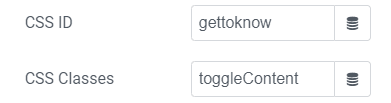
Every 'toggle set' will need one (and only one) element with the class name toggleElem, and one (and only one) element with the class name toggleContent.
You can have multiple such toggle sets on your page (as seen in my examples above).
Give them the required class under Advanced > CSS Classes


Ideally, you would probably want to use the button element as toggleElem, however any element will work.
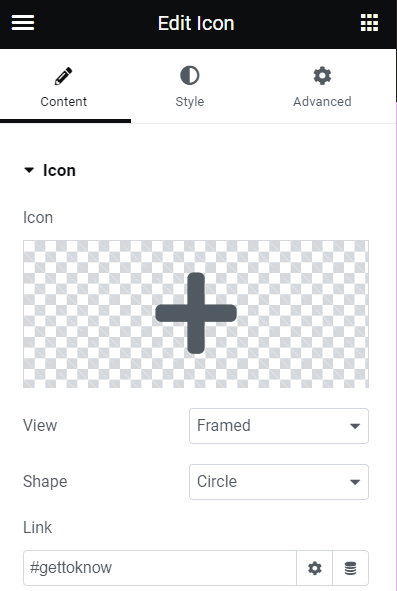
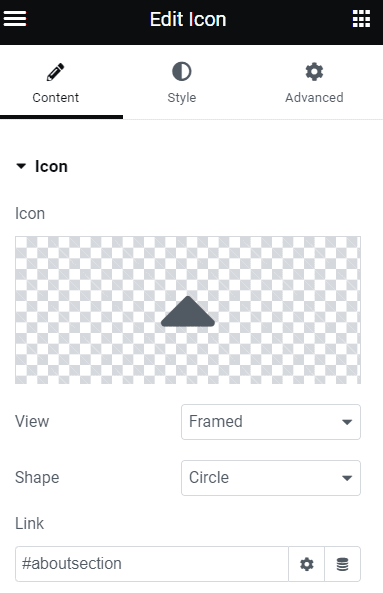
To make this accessible, be certain that you have the "#" in the link field of your toggleElem element.
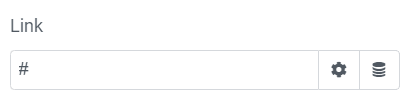
This goes if you are using an entire container as toggleElem, you will want to go under Additional Options > set the HTML tag to <a>, and then enter '#' in the link field. Be careful not to have any other elements within that also has <a> tags then.
Adding "closing" buttons
This is optional.
If you would like, you can add buttons (or any element really) within your toggleContent container or section, that when clicked on, will close the toggleContent.
Give them the class name toggleClose.

Important: if you choose to add closing buttons, you will need as many on your page as you have toggleElem and toggleContent elements. Say in total you have 10 toggleElem and toggleContent elements on the page, you will need 10 toggleClose elements as well. Point is, you can't have it just for some and not for others.
Now, let's add the code to your page
Add the code below in an HTML element, on the same page as your Elementor Show Hide Container (or other) is.
<script>
/* Please login to get the code
 * The code will be for the Amazing Elementor Show Hide Section Button tutorial
 * Found at this URL https://element.how/elementor-show-hide-section/
 */
</script>
Note that the code will automatically take care of hiding the toggleContent on the front end.
That way, you don't have to mess with the responsive settings, and then have to remove them all when you need to make an edit in one of the toggleContent container or section.
It will produce a small flash on page load though, but it should be barely visible, and even then only if you have this above the fold. Ideally it would be below the fold (i.e. below the part of the page that's visible on page load).
In this version of the code I also added support for Elementor popups. So you can have this custom toggle inside a popup as well.
How the code works
You might be wondering, how does this toggleElem knows that it should open that toggleContent. Good question!
It works with the index. In other words, when it shows up on the page, or more technically, in the DOM / source code.
So the very first element on the page with the class toggleElem with automatically be linked with the very first element with the class toggleContent (and if used, toggleClose). Element 2 with class toggleElem will be linked with element 2 with class toggleContent, and so on.
Adjusting the code
The JavaScript part should be left as is (except if you want an accordion, see below). Towards the end of the code there is some CSS, you might want to adjust it, in particular the transition for the icon in your toggleElem.
Making it an accordion
If you would like only one toggleContent to be open at a time, in other words for your set of custom toggles to behave like an accordion, change these two lines:
<script>
/* Please login to get the code
 * The code will be for the Amazing Elementor Show Hide Section Button tutorial
 * Found at this URL https://element.how/elementor-show-hide-section/
 */
</script>
to
<script>
/* Please login to get the code
 * The code will be for the Amazing Elementor Show Hide Section Button tutorial
 * Found at this URL https://element.how/elementor-show-hide-section/
 */
</script>
Adding anchors to the Elementor Show Hide Toggles
If you would like to replicate what you see in the example that's showcased in the fancy iframe 2 above, where it automatically scrolls to the opened toggleContent and then back up when you close it by clicking a toggleClose, it's quite simple.
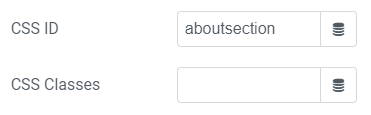
You just need to add IDs to your sections / containers, and then link to these in the toggleElem and toggleClose elements.
Finally, enjoy your Elementor Show Hide Anything toggles!
I hope you have enjoyed this tutorial!
Be careful going through the comment section and trying to make modifications from the comments you find there, as it was using an older version of the code. I completely rewrote the code in April 2023 so check the comments from that date forward!
Cheers!
465 Responses
Hi. Verry usefull tips ! Thanks
Welcome!
Thanks for all this work, Maxime!
I'm having a bit of trouble getting the button to work with inner sections, so I had a couple questions...
1. Can I leave the code as saying "elementor-section" or do I need to change it to "elementor-inner-section"?
2. When I create a multi-column main section, the button doesn't recognize any inner sections placed within those columns. I made sure to keep the button out of any inner-sections, but it still doesn't work. However, if I make a new section below the one with the button, it will show/hide that section but ignores any columns, it just hides the whole thing.
Ultimately, I can get the button to work with sections that are stacked vertically, but it's being a little obstinate with horizontal sections and I'm not sure why.
Hey James! Yes, it works with vertically stacked sections only.
To achieve my smartphone example, you need 6 inner sections: The buttons needs to be in their own inner sections, and below, another inner section with the content you want to toggle.
For this to work horizontally, or for sections above or to the left, or for any element and not just sections, code modifications are required. That's something I code quite frequently for clients: a content switcher that directly answers their specific needs for a project. You can send me a message if you are interested!
In the article here, I kept things as simple as possible. It can still be very useful for many applications, but indeed, certainly not all cases.
Hi Maxime, Wondering if you could please contact me regarding a. project id like some assistance for this very thing.
Email sent. Cheers!
Hi Hi,
Really awesome this code and it works when I use the default of what you showed. But when I make some changes in it i cannot get it to work 100 % good. Probally my own fault.
Because i wanted to open sections elsewhere on the site i gave the sections a different class and changed the code as you said in one of the comments overhere.
But, with every section having a close button it did now work anymore. With playing around a bit, i did find a sollution for this. I changed also the close code and the panel was closing like i wanted.
However, when i use the close button... the icon stays turned down (arrow) and is not turning back up. When i reopen the panel by clicking the buttion the icon is turning horizontally. How can i make this that when i close the panel the icon will turn horizontall again.
This is the code i made:
<script>
document.addEventListener('DOMContentLoaded', function() {
jQuery(function($){
$('.showme').click(function(){
$('.openpanel').slideToggle();
$(this).toggleClass('opened');
});
$('.showme1').click(function(){
$('.openpanel1').slideToggle();
$(this).toggleClass('opened');
});
$('.showme2').click(function(){
$('.openpanel2').slideToggle();
$(this).toggleClass('opened');
});
$('.showme3').click(function(){
$('.openpanel3').slideToggle();
$(this).toggleClass('opened');
});
$('.closebutton').click(function(){
$('.openpanel').hide().find('.showme').click();
});
$('.closebutton1').click(function(){
$('.openpanel1').hide().find('.showme1').click();
});
$('.closebutton2').click(function(){
$('.openpanel2').hide().find('.showme2').click();
});
$('.closebutton3').click(function(){
$('.openpanel3').hide().find('.showme3').click();
});
});
});
</script>
<style>
.showme a , .showme i , .showme img, .closebutton a, .closebutton i, .closebutton img{
cursor: pointer;
-webkit-transition: transform 0.34s ease;
transition : transform 0.34s ease;
}
.showme1 a , .showme1 i , .showme1 img, .closebutton1 a, .closebutton1 i, .closebutton1 img{
cursor: pointer;
-webkit-transition: transform 0.34s ease;
transition : transform 0.34s ease;
}
.showme2 a , .showme2 i , .showme2 img, .closebutton2 a, .closebutton2 i, .closebutton2 img{
cursor: pointer;
-webkit-transition: transform 0.34s ease;
transition : transform 0.34s ease;
}
.showme3 a , .showme3 i , .showme3 img, .closebutton3 a, .closebutton3 i, .closebutton3 img{
cursor: pointer;
-webkit-transition: transform 0.34s ease;
transition : transform 0.34s ease;
}
.opened i , .opened img , .opened svg{
transform: rotate(90deg);
}
</style>
I hope you can help me.
That's a bit of spaghetti code, and ideally would be written in a better way, but it's good for learning, and good job with it! You got quite close to what you want by youself... props on that!
Replace your code with this:
<script>
document.addEventListener('DOMContentLoaded', function() {
jQuery(function($){
$('.showme').click(function(){
$('.openpanel').slideToggle();
$(this).toggleClass('opened');
});
$('.showme1').click(function(){
$('.openpanel1').slideToggle();
$(this).toggleClass('opened');
});
$('.showme2').click(function(){
$('.openpanel2').slideToggle();
$(this).toggleClass('opened');
});
$('.showme3').click(function(){
$('.openpanel3').slideToggle();
$(this).toggleClass('opened');
});
$('.closebutton').click(function(){
$('.openpanel').slideToggle();
$('.showme').toggleClass('opened');
});
$('.closebutton1').click(function(){
$('.openpanel1').slideToggle();
$('.showme1').toggleClass('opened');
});
$('.closebutton2').click(function(){
$('.openpanel2').slideToggle();
$('.showme2').toggleClass('opened');
});
$('.closebutton3').click(function(){
$('.openpanel3').slideToggle();
$('.showme3').toggleClass('opened');
});
});
});
</script>
<style>
.closebutton a,.closebutton i,.closebutton img,.closebutton1 a,.closebutton1 i,.closebutton1 img,.closebutton2 a,.closebutton2 i,.closebutton2 img,.closebutton3 a,.closebutton3 i,.closebutton3 img,.showme a,.showme i,.showme img,.showme1 a,.showme1 i,.showme1 img,.showme2 a,.showme2 i,.showme2 img,.showme3 a,.showme3 i,.showme3 img {
cursor: pointer;
-webkit-transition: transform .34s ease;
transition: transform .34s ease
}
.opened i,.opened img,.opened svg {
transform: rotate(90deg)
}
</style>
Maxime Desrosiers mmm cant attach a picture. I changed the spaghetti code into your code 🙂 tonight we had spaghetti for dinner so probally i looked into the wrong receipe.
Still, when I use the close button at the bottom side of the panel it closes the panel, but the icon in the first button to open it, will not rotate the icon back into horizontal position.
I think this is because i have four buttons in a horizontal row (Thats why i made the showme 1,2, 3 etc) and the buttons open sections with different class names. that sections are made below eachother in elementor.
Is there a way to get the arrow rotating back in horizontal position by using the close button ? I Really hope so because i really like this functionallity.
And thanks to give me a good laugh with the spaghetti comment...
Rhea van Jap 'Is there a way to get the arrow rotating back in horizontal position by using the close button ? I Really hope so because i really like this functionallity.'
Hmm I thought it would ! Can I see your page ?
I tried everything but never manged to make it work. Followed the instructions, placed the icon right above the content I want to hide/show, gave it the class name, cleared the link, read everything in the comments here and it's still not workin. I'm loosing my mind. Can anyone help, please?
Hello Maxime, thank you for this awesome tutorial. I have a problem that on click the section shows, BUT it instantly closes again without clicking... I don't understand because i just copy and pasted your html, can you help?
I love what you have done here and it was exactly what I was looking for. However, I am having an issue where the text I am revieling by clicking on the icon, does not drop down its bounding/outside box. ie. The black box in your example. It just displays over the top of it. I am basically trying to repeat wat you have done with the phone layout above. The only difference I can see is the text I am using is coming via a ACF field. but I can see whay that would make any difference. Also the 3 rows are generated by an ACF repeater but I can't see what that would make any difference. Also another small thing I have noticed. When I click on the icon, it does not rotae 90dec lke yours. Any help would be greatly appreciated.
This is a link to the page that may help. https://wordpress-241034-1814610.cloudwaysapps.com/about-us/
Hi Maxime... It is great but I have one issue... My section is shown by default. When I hide that secion in responsive settings, showme button stops work. How can I fix it?
This is really great, thank you so much! I have just one problem: my showme element is not turning. I read the comments, tried an image, a button and an icon, but nothing changes. If you could help me explaining what I'm doing wrong, it woul be great. This is the page: https://newidentity.marcopolosrl.it/index.php/factory/
You have the code many times on the page... a modified version of it. Start over and follow the tutorial with my code, it should work! And the code should only be present a single time on the page!
Maxime Desrosiers Thank you very much for your time! Ok I deleted one, and copied your original code.
What I'm trying to accomplish is to open te sections below the arrows (and now with your original code this is working perfectly, rotating the icon as well) AND to open the section of the header over the white one that you can see on top of the page, using the plus button on the right, revealing a sort of mega menu . This section movement was working with the modified code, but now is not working anymore.
Is this possible to obtain both movements with the same code?
Thanks again!
Andrea Buzzi Yea it's possible... just got to make the section position:fixed , If I understood correctly what you want. You will need to add a close button in there as well. give that section the class 'yournavigationsection' then add this CSS
.yournavigationsection{
position: fixed;
top: 0;
}
Maxime Desrosiers Thank you so much Maaxime, it works like a charm!
Hello, please tell me how you can make it so that when you open the page, its description is displayed but not completely, and when you click on the link/button, all the content is displayed.
Fantastic code! Everything works great except that my icon won't rotate. I'm using the icon box widget in Elementor. What do I need to do to make it rotate?
Hey Jaylee! Glad you are enjoying the code! Simply change this line of code:
transform: rotate(90deg);
to this
transform: rotate(90deg) !important;
and it should work!
Hi, any way to disable transition for open and close? Like you have on switcher - buum... content is there.
es, change
slideToggle()
to
toggle()
Hi, thanks for this excelent code. I got it to work after I saw a the comment, hide on all devices. My purpose to use this code is for a mobile menu. My problem is that the chevron icon does not rotate as your? I'm not sure I understand how the icon rotate function works. I use an icon not image. Thanks in advance! /thomas
I did Hide the Section in Responsive for all devices however it doesn't appear after pressing the button. It only works showing the section by default. Can you help please?
https://asip.co/store/portraiture-booking-options
Is it possible that the section slips over another section? Or that you can hide the other by clicking on the button / icon?
Yes it probably is! However as there are so many different variations of the design that's possible, I can't include them all ... Those interested in a specific functionality can PM me for custom work!
Hi, Awesome code, thank you!
Question: I'm using the code with JetEngine (crocoblock) list grid. On first page load, everything works great (assuming I don't have lazy load turned on). But when I sort/filter the grid, the sections are no longer clickable, nothing hides or reveals. Any ideas how to keep the code working after sorts/filters/lazy load?
Thank you!
That's right, it won't work well then... because of the AJAX so the JavaScript isn't applied to the newly added elements. You would need to add all of this as a named function, then call that function after the AJAX is completed...
Or there are a few other ways to make this work as well. All of them would need to be integrated dirtectly and tested out to verify it works well. A bit beyond the scope of the article, but if you are interested for paid work send me a message!
Hi, I found this yesterday. I am playing with it. Great tool! I have a little problem. When the Elementor-section below is hidden (responsive tab or display:hidden) ánd full screen, the openend section shows not as full screen and not centered but a lot more to the right. Is this known? And is there a simple trick to solve this? I hope this post is not to late, as I see the last for 1 year ago. Thanks for helping
You are using the 'makae section full width' toggle right? That uses JavaSript to calculate the size of the section, and won't work if the section isn't visible. I would suggest you instead use a normal section, set to full idth, and use a full width layout for your page. Most themes should have this.
If yours don't, then you will need to show the section at first, so that the Elementor JS can accurately calculate the width of the section... then you might make it display:none, before the users get to it... All done in JS.
Hi, just wanted to say a massive thank you. Works a charm and renders several paid plugins completely unnecessary!
Welcome!
Hi, I had this one my website for some time and now i realized that on mobile it opens and closes very quick on clicking in the button. Anyone had this issue?
Do you have the same problem on the current page ? If it's only on your page (and not on this page, or in one of my templates) , then it means somehow you have the code duplicated....
Hi, thank you very much for this tips!
I tested this trick on a page and it works fine, but when I want to do this in a popup window it doesn't work anymore.
An idea?
For this to work, add the code in a HTML element, IN the popup.
And delete these 2 lines :
Hi! Thank you so much for your tutorial. I have a question because for me it works very well however when i click on the button it shows the section however this section appears moved to the right leaving a white space on the left and cutting of information on the right. Do you know how I could fix this?
Sorry forgot to mention that this only happens when I want it to be hidden by deefault so when i activate visibility setttings otherwise it works perfect.
Dani Quiros (For reference for other readers)
Show that section by default, as you normally would for any section
Then, add this line of code
$('.showme').closest('.elementor-section').next().slideToggle();
just before that line of code
$('.showme').click(function(){
In the above example button name is "VIEW INFO", while clicking it needs to change something like "HIDE INFO". Is it possible to change button name when clicked?
Use this code instead, works fine!
<script>
document.addEventListener('DOMContentLoaded', function() {
jQuery(function($) {
$('.showme').click(function() {
$(this).closest('.elementor-section').next().slideToggle();
$(this).toggleClass('opened');
});
$('.closebutton').click(function() {
$(this).closest('.elementor-section').prev().find('.showme').click();
});
jQuery(function($) {
$.fn.extend({
toggleText: function(a, b) {
return this.text(this.text() == b ? a : b);
}
});
$('.showme').click(function() {
$(this).find('.elementor-button-text').toggleText('view info', 'less info'); /* Edit your text here, works for Elementor buttons only ! */
});
});
});
});
</script>
<style>
.showme a , .showme i , .showme img, .closebutton a, .closebutton i, .closebutton img{
cursor: pointer;
-webkit-transition: transform 0.34s ease;
transition : transform 0.34s ease;
}
.opened i , .opened img , .opened svg{
transform: rotate(90deg);
}
</style>
Maxime Desrosiers Thank you very much for this code.
I've given 'closebutton' for the hidden section but close button is not showing up. Am I missing anything?
It was my mistake, I've done it properly.
Working fine now.
Omg. This is amazing. It worked. Thanks Maxime for sharing this with us.
Welcome!
Maxime Desrosiers Thanks so much for your help, this first code you provided works fine but when i click read less, it doesn't go back to read more. please you can open my URL http://www.divinerevelationuniversity.com and click on read less after clicking on read more and see what an talking about. Thanks
Tested your link, works fine!
How can I have it closed by default and it only open on click?
Hi! Thanks so much for this tutorial 😀 Worked like a charm for me.
Except: When I click the close button and the section closes, I need to scroll back up to the beginning of the section and the arrow icon. Is there a way to do this automatically, so the user won't have to scroll?
Thanks
Hey Larissa! Yes, that's possible, simply enter an anchor link in your close button link field ( #example ) . Then go to the section with the arrow icon, and under Advanced > CSS ID , also add 'example'.
Perfect, that works! Thanks for the quick reply
This is amazing thank you for sharing!
This is an amazing piece of art you poublished here 😉
Just would like have also the ability that it not only opens/hide a section but also jumps/scrolls to it when clicked.
How is this possible?
BG
This is possible, using anchors! Give the hidden section a CSS ID under Advanced, then link to this #cssID in your button or icon.
Hi Maxime,
thanks for your reply.
I tried following:
- Giving the hidden section the CSS ID 'section01'
- Created after the hidden section another section and in this new section created a button with the link '#section01'
What happens now is that it jumps to the top of the hidden section but it doesn't unhide the section.
I also tried it with trhe anchor plugin and to reference to it but same behaviour, no opening of the hidden section.
Last thing I tried is to not only having the link in the button to '#section01' but also to mention the CSS Class 'showme' in the advanced tab of the button, but again, no opening of the hidden section.
Anyhting I am doing wrong or missing something?
BG
Tobias
Hey Tobias. At this point I would need to see your page!
I am having the same difficulty—I have the button with a hidden section below, which opens correctly.
However I have a button at the very top of the page, which I want to jump down to the hidden section, and unhide that section.
I've followed the same settings as Tobias.
I will have a tutorial soon that will allow for these situations. It's not ready yet though.. maybe within a few weeks.
Hi Maxime,
Avery clear and useful post as usual.
Is there a way to modify this code so it will show the section once a form is successfully submitted?
I tried using this code with the Send button on a form.
The problem is that the clicking the Send button showed the section REGARDLESS of whether the form was filled and successfully submitted.
Thank you
Yes, there is a way to show a section once a form is successfully submitted.
Below please find a code provided by Maxime.
Place the code in HTML widget, give the section you want to show once the form is submitted a class name (e.g. success-section), and that’s it!
<script>
document.addEventListener('DOMContentLoaded', function() {
jQuery(function($){
$( document ).on('submit_success', function(){
$('.success-section').slideDown();
}); });
});
</script>
Thank you Maxime for being so supportive.
Hi Maxime thank you for your code! I followed your tutorial and everything works fine! But when I clicked the "button" to reveal a section, it will reveal then hide and reveal as per normal. Is there anything I did wrongly?
Hi! Thanks for the code. I just encountered one problem. When the section expands, it doesn't scroll down to the shown section.
I am using an icon and I remove the anchor text because if I won't, it will only scroll to the top and won't show the hidden section.
Can anyone help? Thanks!
This should be working with anchor text... Do you have a link to where you tested this?
Hi! Thank you so much for this tutorial and code! I am wondering if there is any way to have one button open/show all the sections below it, or just more than one. Thanks!
Hey Amy! Yes this is possible.... Use the code below, and give your 'toggler' button the class 'toggler'.
<script>
document.addEventListener('DOMContentLoaded', function() {
jQuery(function($){
$('.showme').click(function(){
$(this).closest('.elementor-section').next().slideToggle();
$(this).toggleClass('opened');
});
$('.closebutton').click(function(){
$(this).closest('.elementor-section').prev().find('.showme').click();
});
let opened = false;
$('.toggler').click(function(){
if (!opened){
$('.showme').closest('.elementor-section').next().slideDown();
$('.showme').addClass('opened');
opened = true;
} else {
$('.showme').closest('.elementor-section').next().slideUp();
$('.showme').addClass('opened');
opened = false;
}
});
});
});
</script>
<style>
.showme a , .showme i , .showme img, .closebutton a, .closebutton i, .closebutton img{
cursor: pointer;
-webkit-transition: transform 0.34s ease;
transition : transform 0.34s ease;
}
.opened i , .opened img , .opened svg{
transform: rotate(90deg);
}
</style>
Hi Maxime,
I use the code to reveal and hide the authors' description on my About page. When I click on the first author, its description appears. When I click on the second author, its description appears below the description of the first author. I would like for the description of the first author to be hidden when I click on the second author, so that there is always only one author's description showing at a time. Is there a simple way to do that with your code. Thank you again. Have a great day.
Here it is. Use the code below instead of the code given in the tutorial. Each section you will want to show also will need the class 'showonclick'.
The first button on the page with the class 'showme' will automatically be linked to the first section (or any other element) with the class 'showonclick'.
<script>
document.addEventListener('DOMContentLoaded', function() {
jQuery(function($){
$('.showme').each(function(j){
$(this).on('click',function(){
$('.showonclick').not($('.showonclick').eq(j)).slideUp();
$('.showonclick').eq(j).slideToggle();
}); }); }); });
</script>
<style>
.showonclick{
display: none;
}
.showme a , .showme i , .showme img{
cursor: pointer;
}
</style>
It works as magic! However, I removed "display: none", because as soon as I entered "showonclick" in the section, it disapeared from the Elementor editing page (I could no longer edit it). I prefer going in "advanced" --> "responsive" --> "hide on... desktop, tablet, mobile". That way I can still edit it in Elementor, but it does not show in the frontend untill the user clicks on the button. Anyhow, thanks again! Very appreciated.
Hi Maxime, the code works but when opened, the section is flattened and not extended and is not whole.. a text element that should appear first (instead of the second) disappears
Any tips?
Hey Gianluca!
I don't understand what you mean by a flattened section. Could you share your page URL with me?
ok i fixed by reading the answers ( adding $('.showme').closest('.elementor-section').next().slideToggle();
Last thing...works the same if i put a text message instead of the icon? Is it possible to add the switch function "show more/show less"?
Here is the code for that. You need to use the Elementor Button element for it to work.
<script>
document.addEventListener('DOMContentLoaded', function() {
jQuery(function($){
$.fn.extend({
toggleText: function(a, b){
return this.text(this.text() == b ? a : b);
}
});
$('.showme').click(function(){
$(this).closest('.elementor-section').next().slideToggle();
$(this).toggleClass('opened');
$(this).find('.elementor-button-text').toggleText('Show','Hide'); /* Edit texts to what you want!*/
});
$('.closebutton').click(function(){
$(this).closest('.elementor-section').prev().find('.showme').click();
});
});
});
</script>
<style>
.showme a , .showme i , .showme img, .closebutton a, .closebutton i, .closebutton img{
cursor: pointer;
-webkit-transition: transform 0.34s ease;
transition : transform 0.34s ease;
}
.opened i , .opened img{
transform: rotate(90deg);
}
</style>
but doesnt work for mobile?
This is brilliant. Thank you so much.
Welcome!
Hi Max,
I'm having issue with the slideToggle() function.
On first page load, the slide toggle doesn't work (it does reveal the hidden section, but It is not obvious that it has been revealed. Which would result in a lot of missed opportunities)
If I scroll down *after* reveal, then the slideToggle works fine (opens and closes).
here's the page --> https://locallogic.co/inman
any idea what's happening? Thanks!
How can I get it to work as expected on first page load?
Hmm you simply need to have stuff below!
Or you could add an ID to the section that's hidden, and an anchor link to that ID in the 'showme' button. Same as how the template I sent you by email works, the one with the large background images.
Hi Max,
I'm using your code on multiple sections ..... & it works perfectly fine with me .......
I encountered one minor problem though ...... there is a specific section where I have a mosue track effect enabled on the background of that section ........ & for some reason it works perfectly fine on all sections except for this one .....
it behaves wierdly enough that instead for interacting with the mouse as normally as it suppposed to be ( like this: https://ibb.co/zftN63N )...... the background top left corner is stuck near the cursor point ( like this: https://ibb.co/GtJ50pp )
& for some reason when I remove that mouse tracking effect .... it works fine
can you help me please
Hey Amir!
Maybe the mouse track code just isn't compatible for sections with dynamic visibility... As my code is working in most cases, I will keep it as it is. The problems is probably in the way the mouse track is coded anyhow, something I can't change. Thanks for reporting the problem though!
It's ok ...... I've actually managed to work it somehow by writing some custom JS codes that hide sections instead of using the default elementor hide/show switch..... with a little bit of delay before hiding the sections..... it worked........
I don't really know why but it did :')
........only one last thing now ......can I make your code only show sections upon clicking without hiding it if it got clicked again
I thought about making the button disapppear upon clicking .....but I don't really think that's a good idea to go around.....
can I make a little tweak to make your code so that it only shows content & not hiding it afterwards ??
thanks in advance
hello, thank you so much for your posting. the code works great with my website, though i want to know if it's possible to hide the toggle button after click too? here is the code that i have used :
document.addEventListener('DOMContentLoaded', function() {
jQuery(function($){
$('.togglebutton1').click(function(){
$('.section1').slideToggle();
$(this).toggleClass('opened');
});
$('.togglebutton2').click(function(){
$('.section2').slideToggle();
$(this).toggleClass('opened');
});
$('.togglebutton3').click(function(){
$('.section3').slideToggle();
$(this).toggleClass('opened');
});
$('.closebutton1').click(function(){
$('.section1').slideToggle();
$('.togglebutton1').toggleClass('opened');
});
$('.closebutton2').click(function(){
$('.section2').slideToggle();
$('.togglebutton2').toggleClass('opened');
});
$('.closebutton3').click(function(){
$('.section3').slideToggle();
$('.togglebutton3').toggleClass('opened');
});
});
});
.closebutton1 a,.closebutton1 i,.closebutton1 img,.closebutton2 a,.closebutton2 i,.closebutton2 img,.closebutton3 a,.closebutton3 i,.closebutton3 img,.togglebutton1 a,.togglebutton1 i,.togglebutton1 img,.togglebutton2 a,.togglebutton2 i,.togglebutton2 img,.togglebutton3 a,.togglebutton3 i,.togglebutton3 img{
cursor: pointer;
-webkit-transition: transform .34s ease;
transition: transform .34s ease
}
.opened i,.opened img,.opened svg {
transform: rotate(90deg)
}
Hi,
It works but for me, the section by default is opened (I use a button). How do I make it closed by default? I want to open it when I click on the button and close it when I click again. Thank you!
Correction: *I use a chevron not a button
Hey Eleftheria!
To make it closed by default, go under Advanced > Responsive > hide for desktop, tablet and mobile!
hello, I've used the 'show me' class on a whole section to reveal the section beneath it, which works great, but when I tried to add the 'closebutton' class to the whole section below it did not appear to work.
Is it possible that you can click the whole section and not a button?
any help appreciated 🙂
Indeed, the code would require a small modification for this to work. Try this instead: add the 'closebutton' class to the column, all of them if you have more than 1. Then it should work as you want here...
Thanks! it works perfect 😉
Hello and thanks for the tutorial! i want the hidden section to be hidden by default, so I hide it on desktop, mobile and tablet like you explaind. but the section that opens is showing not correctly (only 1/3 of it's height...) i need it to show the full section height
any idea why it happens to me?
ok i figured it out - because I had gallery widget it messed up the hidden section
Hello Maxime, thanks for the code! I have a question. I have mutliple sections below the button with 3 different CSS classes and i would like to open each CSS class with another click. For example: Click 1 opens CSS class "hidden" Click 2 opens "hidden2" Click 3 opens "hidden3" and on the fourth click everything is closing.
With this script i can only open "hidden" but how i continue with click 2 and 3?
Could you help with that?
Thanks for your help!
document.addEventListener('DOMContentLoaded', function() {
jQuery(function($){
$('.showme').click(function(){
$('.hidden').slideToggle();
$(this).toggleClass('opened');
});
$('.closebutton').click(function(){
$(this).closest('.test').prev().find('.showme').click();
});
});
});
Hey Steven! Yes, please email me at maxime@element.how . This would fall under custom work though! Definitely not a common scenario. I will share my rates in private.
Hello, I'm having an issue where when the section is "hidden" in the advanced options to make it "default closed" its changing the image gallery that is in the hidden section. The image gallery I'm using has 9 images but when I set the responsive mode to "hidden" and the section is toggled "open" on the live website it only displays 1 image, the first image in the gallery. IS there any way to fix this so the entirety of the gallery is shown when toggled open from "default closed"?
I had figured out if you use the widget "gallery" instead of "photo gallery" It works as intended.
Thanks, Todd
Hi Maxime, thanks a lot !! I tried to paste the code but only the image (icon) rotate. The hidden text doesn't appear. I put the html above the inner section. I have 5 columns, like in your example, I want the text widget appears when I click the image element above.
Then I tried the code you gave somebody else in the comments : "$('.hiddensection').slideToggle(); "
and I gave a class to the text element.
Now I works well but the thing is, when I click on image in column 1, all texts from the 5 columns appear !
I would like to reproduce your example (each text appears for each column). Should I put a different class for each and copy the code in each column ?
Thanks !! (Here's the URL : https://amanda.luminaweb.fr/)
Hey Virginie!
Should I put a different class for each and copy the code in each column ?
That would work! Not ideal, but it's the way for JavaScript newbies. That's where we start learning!
Otherwise I don't have the code ready. My example works a bit differently... you should have received the template for it when you logged in the first time on my site. Just use that and go from there!
For anyone using an svg icon as the button and looking to change the color, you can do so using a filter. First set the starting color and hover of the icon.
In my instance, i only needed the icon on mobile so i didn't bother about the hover state color.
using fill: will not work, so instead you can use a filter command. However, getting the right values is not easy. But you can use this little tool here: https://codepen.io/sosuke/pen/Pjoqqp
Also note that if your starting color is not black, you will need to add "brightness(0) saturate(100%)" as indicated in the tool.
Then once you got your color, you pop the filter in the html provided by Maxime, like so for example:
.opened i , .opened img,.opened svg{
filter: brightness(0) saturate(100%) invert(62%) sepia(55%) saturate(2477%) hue-rotate(358deg) brightness(102%) contrast(106%);
}
Works!
Thank you Manuel for sharing this!
Hey there!
Your code works perfect 😀 Thanks a lot for your time on this... i have a situation that im thiking that is not working with me because im not using a BUTTON for this, i need to use a SECTION as a "button" to show a widget (shortcode), can this be done?
GREETINGS FROM CHILE!
Sorry... INNER SECTION as a button to show the shortcode below 😀
TANKS AGAIN!
Yes, that won't work with the design here... for this, use that code instead, and give your inner section the class 'showme'!
<script> document.addEventListener('DOMContentLoaded', function() { jQuery(function($){ $('.showme').click(function(){ $(this).next().slideToggle(); $(this).toggleClass('opened'); }); $('.closebutton').click(function(){ $(this).prev().find('.showme').click(); }); }); }); </script> <style> .showme a, .showme svg, .showme i , .showme img, .closebutton a, .closebutton i, .closebutton img{ cursor: pointer; -webkit-transition: transform 0.34s ease; transition : transform 0.34s ease; } .opened i , .opened img,.opened svg{ transform: rotate(90deg); } </style>Hi Element.how team,
I have been reading through the comments to see if someone has the same question, and I think I may be close but not 100% sure.
I am wanting to use the hide/show set up on my website FAQs page, so I will have a number of questions and I want the answers to be hidden until clicked. I have followed the tutorial and I can see my questions, my icons rotate, but the answers don't show. The page maybe 'jumps' a few times as if it is trying to open and close before returning to stillness.
From other answers I am wondering if I am adding the html code too many times as I have it under each question, but then I am not sure how to create different hidden answers.
The FAQs are set out in two separate section columns side by side.
Hope you can help, I am not very good but I am trying to learn, thanks!
Hey Victoria!
Yes indeed. It's very important to have the HTML element with the code in it only ONE time per page. Otherwise it will cause the problem you describe!
It will still work for many such sections, your buttons just need the proper class of 'showme'.
Hi Maxime,
Thank you for your response. So where would I position the html if the set up was in such a manner
FAQ1
Answer 1(to be hidden)
FAQ2
Answer 2 (to be hidden)
etc.
I have two columns following this list style design, as from what I understand with the html code it would only be responsive to the item immediately below it?
Thank you
Victoria
Hi,
thanks for your amaizing work! I've inserted the code into a HTML section. Then inserted text into another section. Above put an icon into another section. This works like a charm. Then I made two sections with icon and text in the same way, but unfortunatelly this doesn't work. When I move the cursor above the second icon, that is not clickable. What colud be wrong? Can you please help me? Thanks!
I don't know... I would need to see your test page!
Hi Maxime thanks for great content.
I've created a page with many section in order to show it as accordion tab.
But the problem is that there are sections that needs more then 3 click in order to show the content.
This tab are correctly opened and after short time were be closed.
You can see an example here -> https://wearemarketers.net/single-user/2/user-profile/
Why this happend?
Hey Francesco!
This is because you have the code more than 1 time on the page. Even if you have multiple show hide sections, the code itself is required ONLY ONE TIME on the entire page.
Hope this helps.
I put the code only once! Where ddo you see the second one?
You are right. I didn't check first. Usually this bugs happens because the code is present more than one time.
Now I checked your site, I can see the problem. You added showme to the parent container (the section), as well as the heading within that section. So it triggers the code twice when clicking the heading, as you are clicking two elements with the class 'showme' at the same time.
Make it so only one element with the class showme is clicked, and it should fix this!
Cheers!
Great Maxime works fine! Thanks for all man!
Thanks Francesco!
Can this be done on a menu item? with a close button on the hidden section? I have tried but the close button closes the hidden section but it automatically reopens again?
Yes it can, however it's possible it would require a few code adjustments, depending on your exact setup and requirements! You can message me (see footer) if you want paid help for this.
It doesn't work for me. Just nothing happens.
Hello, thanks for the code! I wonder if hiding sections containing some content would affect the SEO of the page negatively.
Don't worry about it. Learn more about this here. Read it all.
Hi, thanks for this great snippet! I noticed that you try to have this on header (using elementor theme builder) the section below the button/image/icon with the show me class doesn't show up. and I was wondering if you have any idea why this happens.
Yes, that's a use case where the code won't work...
Hi, I'm having trouble getting this to work in a Popup. Is that not supported?
Hey Cheyenne !
Indeed it won't work as is in a popup. There, you need to remove this line at the start of the javascript portion (in between the <script> tags):
document.addEventListener('DOMContentLoaded', function() {
And also delete one instance of these three characters at the end of the javascript portion
});
Then, it should work in a popup. The HTML element with the code also needs to be in the popup.
Cheers!
Hi! This works in preview, but once I apply the popup to a button, it no longer works. Any thoughts? Thank you for the quick reply!
Just realized me message wasn't fully visible.. I updated, please check my comment above and let me know if that works!
Good news, I figured out the issue. "Optimize JavaScript Code" in the Autoptimize plugin was the culprit. It's working now that I turned that off.
Hello how do i make a default section open?
Sorry I'm not certain what you mean?