
Updated February 2024
In this tutorial, I'm going to show you how we can add an Elementor button that will toggle the visibility of any other element, including container and sections.
You can think of it as turning any Elementor set of elements into a toggle.
Here are are a few demos of what you will learn in this tutorial:
Features:
- Works with all elements
- Compatible with sections and containers
- Easy setup
- Flexible
- Accessible
Let's get started!
First, let's setup the class names for this Elementor show hide design
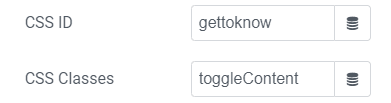
Every 'toggle set' will need one (and only one) element with the class name toggleElem, and one (and only one) element with the class name toggleContent.
You can have multiple such toggle sets on your page (as seen in my examples above).
Give them the required class under Advanced > CSS Classes


Ideally, you would probably want to use the button element as toggleElem, however any element will work.
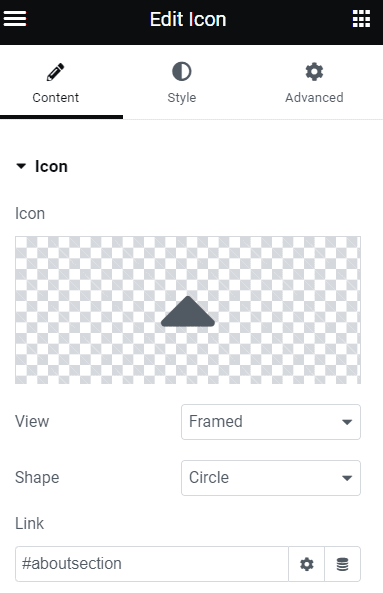
To make this accessible, be certain that you have the "#" in the link field of your toggleElem element.
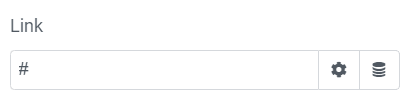
This goes if you are using an entire container as toggleElem, you will want to go under Additional Options > set the HTML tag to <a>, and then enter '#' in the link field. Be careful not to have any other elements within that also has <a> tags then.
Adding "closing" buttons
This is optional.
If you would like, you can add buttons (or any element really) within your toggleContent container or section, that when clicked on, will close the toggleContent.
Give them the class name toggleClose.

Important: if you choose to add closing buttons, you will need as many on your page as you have toggleElem and toggleContent elements. Say in total you have 10 toggleElem and toggleContent elements on the page, you will need 10 toggleClose elements as well. Point is, you can't have it just for some and not for others.
Now, let's add the code to your page
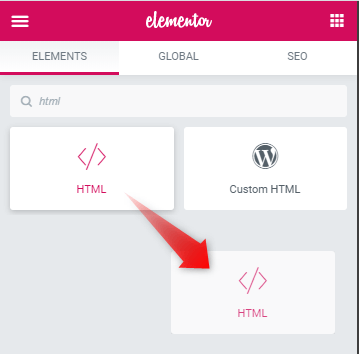
Add the code below in an HTML element, on the same page as your Elementor Show Hide Container (or other) is.
<script>
/* Please login to get the code
 * The code will be for the Amazing Elementor Show Hide Section Button tutorial
 * Found at this URL https://element.how/elementor-show-hide-section/
 */
</script>
Note that the code will automatically take care of hiding the toggleContent on the front end.
That way, you don't have to mess with the responsive settings, and then have to remove them all when you need to make an edit in one of the toggleContent container or section.
It will produce a small flash on page load though, but it should be barely visible, and even then only if you have this above the fold. Ideally it would be below the fold (i.e. below the part of the page that's visible on page load).
In this version of the code I also added support for Elementor popups. So you can have this custom toggle inside a popup as well.
How the code works
You might be wondering, how does this toggleElem knows that it should open that toggleContent. Good question!
It works with the index. In other words, when it shows up on the page, or more technically, in the DOM / source code.
So the very first element on the page with the class toggleElem with automatically be linked with the very first element with the class toggleContent (and if used, toggleClose). Element 2 with class toggleElem will be linked with element 2 with class toggleContent, and so on.
Adjusting the code
The JavaScript part should be left as is (except if you want an accordion, see below). Towards the end of the code there is some CSS, you might want to adjust it, in particular the transition for the icon in your toggleElem.
Making it an accordion
If you would like only one toggleContent to be open at a time, in other words for your set of custom toggles to behave like an accordion, change these two lines:
<script>
/* Please login to get the code
 * The code will be for the Amazing Elementor Show Hide Section Button tutorial
 * Found at this URL https://element.how/elementor-show-hide-section/
 */
</script>
to
<script>
/* Please login to get the code
 * The code will be for the Amazing Elementor Show Hide Section Button tutorial
 * Found at this URL https://element.how/elementor-show-hide-section/
 */
</script>
Adding anchors to the Elementor Show Hide Toggles
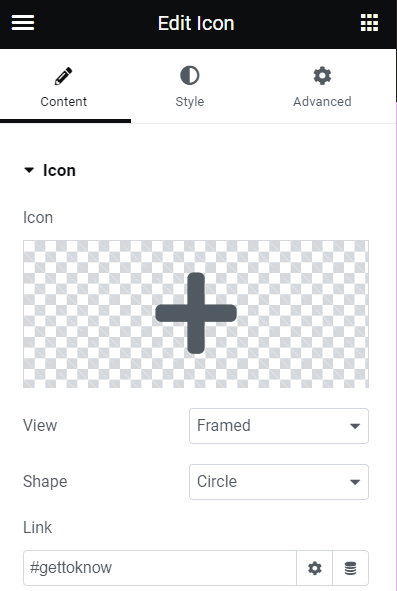
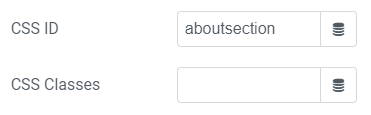
If you would like to replicate what you see in the example that's showcased in the fancy iframe 2 above, where it automatically scrolls to the opened toggleContent and then back up when you close it by clicking a toggleClose, it's quite simple.
You just need to add IDs to your sections / containers, and then link to these in the toggleElem and toggleClose elements.
Finally, enjoy your Elementor Show Hide Anything toggles!
I hope you have enjoyed this tutorial!
Be careful going through the comment section and trying to make modifications from the comments you find there, as it was using an older version of the code. I completely rewrote the code in April 2023 so check the comments from that date forward!
Cheers!
465 Responses
Nice. Thank you for sharing.
Thanks!
Very good effect but I have one question, Are you able to use this effect to to make side by side elements within the same section open and close independent of each other.
Refer to this image and it will give you an idea of what Im refering to....... Thanks
https://ibb.co/wyRLNGK Image Link
Did you figure this out?
Philippe Leroux This tutorial doens`t allow for this... However I did code something very similar for a client, but it goes beyond the scope of the article here.
Well in fact I just updated my article with a similar example, as my code also works for inner sections so you can get something quite similar to what Matty shared!
Philippe Leroux See the new example
Hi,
It works but for me the section by default is opened (I use a button). How do I make it closed by default. I want to open it when I click on the button and close it when I click again. Thank you!
I'm having the same trouble as Olivia. I tried hiding the viewport for all but I can't get the section to appear on button push.
hello Jim, if you have a link to the page where you tested that, I could have a quick look
Maxime Desrosiers hello, Maxime. Did you solve the problem Jim and Olivia had? I also need the section to be closed by default, and it has to open at clicking the button. Can you help me with that as well? Thank you
Egor Ko you need to hide that section for all viewports (if you want it hidden by default) (seehttps://element.how/.../10/dion_nodisplaysection.pngg )
I have the same issue as Olivia. The section by default is opened and I also use a button. I want to make it closed by default. I want to open it when I click on the button and close it when I click again. Can you help?
I would like to mention here that I helped Cornelia in private, and she got this working! Just needed to follow the part of my article that is accessed by clicking the other right chevon icon.
Maxime Desrosiers Thanks again for your help, Maxime!
hello, this is great but I have 5 icons on my page and I want each icon has it's own separate open/close section. how do I do that?
Yes that would work! just follow the instructions! Give them all the class ' showme ' , and the upcoming section will be opened by clicking on them!
Maxime Desrosiers Thank you for the help but those 5 icons were inside a one section.
Did you get any help with this, I´m doing the same thing but the buttons always open the first section below... I have 6 icons in one section, all have "Showme" class.
Helo,
Sorry for my english but how to ??? : You need to empty the 'link' field of the button, to prevent the page reload! ?? Where can i do it in the settings ?
I helped Christophe Barbault resolve this in private, he got this working!
Thank you for code .I have a multi steps forms inside this code and when i click next the page reload and my form disappear. Can you help me please
I'm not certain why that would happen. Try showing the hidden section by default, see if that fixes it.
Hello, I can't manage do do this. I did the tutorial step by step. I have a main section with a button, the buttons class is 'showme'. Above the button is the html element with the code. Under the button is the inner section element containing 3 columns. Does the inner section element also need to have a class or something. And yes, the button link is empty. Thanks 😀
Aleksis Aleksandrs Vilnitis For inner sections, the button also needs to be within an inner section. Otherwise, it won't work as expected... the other section below will become the accordion
Hi there, fantastic tutorial. i'm a small business owner just only just getting started with elementor. i tried this and worked like a charm. im just wondering if there's a way to edit it such that it opens another section with its own defined css class. would really appreciate it if you can point me in the right direction. i'm googling the .next() function because im assuming it has something to do with that.
Thanks! Yes , this is possible, simply replace this part
$('.showme').click(function(){
$(this).parents('.elementor-section').next().slideToggle();
$(this).toggleClass('opened');
});
with this (insert your own class name)
$('.showme').click(function(){
$('.specificsection').slideToggle();
$(this).toggleClass('opened');
});
is there a way to make it work to open a section above the element revealing the section instead of under?
Yes this is possible! replace this part
$(this).parents('.elementor-section').next().slideToggle();
with this
$(this).parents('.elementor-section').prev().slideToggle();
Maxime Desrosiers tnx !!!!!
by the way, If I want it to slide from the left to the right and not the top?
Bar Gabbai Not possible with the current code!
Maxime Desrosiers Hello, thankyou for sharing good articles. Please help me, the code that you share for open a section above the elements can't work. Is there any solutions ? thankyou
Evo Syah $(this).parents('.elementor-section').prev().slideToggle();
Hi! Thank you for the code, it is very appreciated.
I have two regular sections. The first regular section contains two inner sections: the top inner section contains my button and the bottom inner section is the one that I want to reveal. Under the first regular section is my second regular section which contains my recent posts. When I click on the button, it reveals the inner section just below it (which it is supposed to do), but for some reason, it simultaneously hides the second regular section (i.e., the one containnig my posts). The only work around I have found is to add an empty regular section between my two regular sections so that it gets hidden instead without affecting the visuals, but it is not practical. Do you know why it behaves like that? Thx!!!
Salut Alexandre! You are right! The way the code was written, this made this happen...
I updated the code to compensate for this, now it should work as intended!
Thank you Maxime, it works like a charm!
How can you make the icon rotate? or replace the icon? I want to use a + and -.
Thanks 🙂
I'd also love some help doing exactly this if you've found a way
Nico Krauss I updated the code to make this work more easily. Now you should also get the same results as you can see in my examples in the article, when you are using the Elementor icon or button elements.
Just wanted to say thank you for this tutorial, exactly what I was looking for and worked perfectly!
Thanks Zaima! I'm glad to hear this!
Thanks for the awesome code. If I use multiple instances of this code on a page, each code needs to go into a separate html element? With a new class name?
No, it works for any such sections on the page from the exact same code! So only one html element is needed, no matter how many buttons you give the class 'showme' on your page
Awsome thanks! is there a way I can hide the section on page load?
Yes! click the other right chevron icon for these instructions! Right below 'Give that element the class 'showme'.'
Hey this is perfect! Thank You, I was wondering if you could show us how to have the icon change or rotate onclick and how to have the button change text or color on click? Thanks again!
Hey Ryan! If you use the normal 'icon' element, it should already rotate on click (as in my demos above!)
For changing the button color on click, this is a bit more advanced. I might make another tutorial for this...
This tutorial worked perfectly but is there a way to make the icon change to another icon when clicked open as I've used a plus sign so the rotate function doesn't show. Thanks!
Awesome tutorial! I could make it work with sections and inner sections, but the icon does not rotate. I’m using the “icon” widget with the chevron font awesome icon. Any ideas for what I’m doing wrong? Thanks!!!!
Hello Luiz! Could you share with me the page where you have this setup? I will have a look.
Hello Luiz. Try to delete degree number in icon's advanced tab. Works for me. Sorry for my english.
What is the "degree number"? - which section of the advanced tab?
Shelley, I think Goran means the Style tabs. There you can set a rotation... empty that field.
Goran Savičić Thanks Goran! That would fix this indeed!
Hi Maxime. Thank you, it works well for me. However, everytime I open or close the section, the sidebar jumps to the top of my page. Its a small page, so I can still see the opened section, but it impedes on the user experience. Is there a way to open and close the section without the page moving up? Thank you in advance.
From the article: Important: if using a button, empty the 'link' field. Otherwise it will reload the page. (Or move to the top of the page.)
Could that be the problem Alexandre?
Maxime Desrosiers, sory for the delay. It was exactly that! Thank you so much.
Hey Maxime Desrosiers. I have the same problem as Alexandre describes. I have uploaded your latest code in the HTML tag, Right under that I have used a button and emptied its link field. And given it the 'showme' class. Under the button is the section that is hidden. It shows when you press the button. However, when you press on it still reloads the page. Any idea what could be the problem? Thank you!
Lucas Den Hollander As I wrote in the article, and just above in this very thread:
Important: if using a button, empty the 'link' field. Otherwise it will reload the page (or move to the top).
Lucas Den Hollander You mention having nothing set in the URL field, however that's the only reason why the page would reload... I have nothing in the code that would make the page reload.
I used this method and in theory it's perfect, but in execution it's not working correctly. When you press the icon to open the section it opens and closes 4 times but then finally closes and never stays open. Is there any way to fix this? Here's the page for reference: https://stagedoorcentral.com/show-catalog/ . Thanks so much!
You have many instances of the code on the page. Only one instance is needed.
Hi there this has worked greatly for my website, but i was wondering if I can also show the section linking from another page?
This is possible, however it is beyond the scope of the current article!
Maxime Desrosiers I see, what a shame it would be great if there was a further development on this topic. Thanks anyway
Nikki Wilkinson If you know a bit of coding. you can mix this tutorial with that one here : https://element.how/elementor-open-specific-tab.../
Hi. this is great and I nearly got it working, but need your help, please - thanks for your effort in creating this trick and writing the article! I want to use the inner section feature. I have created a section and have added two inner sections inside it, with 2 columns each, so they sit on top of each other. When I click the Icon that I have placed in th einner section field on the top it opens and closes the complete bottom inner section, not just the area underneath the icon. What am I doing wrong?
And just when I finished writing it occured to me! Create the columns in main the section. Then add two inner sections into each column on top of each other, icon into top, element into bottom. And it works 🙂
Markus Erdmann Exactly right! glad you were able to make this work!
Hi Maxime, thank you for the code, it worked good for me. I followed the instructions you gave to Ariff to open other sections and it worked well. I only have one little issue, basically I would like that when one section opens, the other one previously opened closes automatically. Now each section opens on top of the other one. Is it something you can help me with? Thanks a lot.
This requires more complex coding, and is beyond the scope of this article... You might try using an accordion element, and inserting template shortcode in them, to get something similar, though.
did you resolve this?
Huge thanks for this Maxime, and for the rest of the site, it's brilliant. All kinds of stuff I've wanted for ages.
Thank you for the kind words!
Great code, it worked for me in the Zakra theme.
The problem i found is that im trying to hide an entire section that contais a woolentor widget, when the section shows up it's not centered in the page, it goes to the right side. If i remove the code the section shows normal, as the others in the page.
Hey Mat!
Try this: Show that section by default, as you normally would for any section
Then, add this line of code
$('.showme').closest('.elementor-section').next().slideToggle();
just before that line of code
$('.showme').click(function(){
let me know if that works!
Maxime Desrosiers It worked great! Thank you so much!
Dani Quiros Great! Really glad you found the answer!
Just tried adding this to my site but despite follow the steps it won't work for some reason. I added the HTML element and pasted in the code from above. After that I added an icon (also tried with a button) and added "showme" under the CSS Classes section (also tried CSS ID for good measure). The icon is above the section I want to hide, so I hid the section on all devices and gave it a shot but it didn't work for whatever reason. Any idea where I went wrong?
Is it in an inner section, or right in the section? It needs to be right in the section, if the section you want to expand is a whole new section. If you want to expand an inner section, then it needs to be in its own inner section, above.
Maxime Desrosiers As far as I can tell it's all properly formatted, I tried making 2 fresh sections, dropped the button into the one above and some text into the one below, hid the lower section, and it still didn't work. The only plugin I have is Elementor Pro. Thanks so much for your help!
Any update here? I'm having the same issues. Thank you so much!
Hey Marcelo!
I did help out Nico, and it worked just fine. If you are having problems, try importing the templates received while signing up for this website.
These should be working fine. If they are, it means somehow there was an error while following the steps above. If the templates are also not working, it might be your particular setup such as server, optimization, etc.
Works perfect! Just one question: it's opened on pageload. Can I hide as default and open on click?
Yes, and I explain how to accomplish this, right in the article! Read carefully! (and click on the icons to expand the content!)
Thank you very much! The code works perfect.
Thanks!
is there any possiblity to work in the inner section if one section clicked opened and then we click other section the rest of the section closes itself? something like alternate opening of sections?
This is possible, but it`s beyond the scope of the article... There are many, many little features changes and options that are possible with this design, I can`t include all variations in this article.
I want to keep thing as simple as possible, and that`s what I present here... for everything else, you can message me for custom work!
it did'nt work on my, tried to a section with 2 columns, 2 html elements and 2 buttons, didn't work
Only a single HTML element is needed. Please share your URL so that I can check why it is not working!
Hi Maxime. Is it possible for multiple buttons with the same class to open the hidden element? I have 5 buttons with the same CSS class and I want all to open the same element. However, this only works with the first button but not with the rest. It would be so much appreciated if you could help, this is an amazing function just what I needed.
Hey Jade!
Change this line:
jQuery(contents[i]).slideToggle();
to this:
jQuery(contents[0]).slideToggle();
Cheers!
Any way to make the 'showme' icon disappear till close is pressed?
Yes, but it`s beyond the scope of the article... And to answer your other comment, to understand what`s going on here, learn jQuery and Javascript! It will also allow you to modify the code to implement exactly the features you want!
Maxime Desrosiers Cool, thanks
Aakash Arasu can you tell me the code? please im searching that
Show/Hide works but, when I click on the button, there is no smooth animation or anything and it redirects me to top of the page so I have to scroll down again to see the expanded section. How can I fix that?
In the article, I wrote:
Important: if using a button, empty the 'link' field. Otherwise it will reload the page. (or move to the top)
That should fix this!
The code works completely fine. However, if I set the height of the section to "fit to screen" it shows the opened section but doesn't scroll down to it. Any workaround for this please?
You can use anchor link, and an anchor element. The button with the class 'showme' should link to the anchor element, that is within the section that expands.
Hello! Thanks for this code, it's perfect for some new sections inside our website.
I'm having a problem with some of the gallery widgets (the buttons and animations inside seem to stop working) and using a gallery with the justify layout just doesn't show anything when I open the closed section with the button, hope you can help me to fix this.
Thanks.
Yes indeed... gallery elements are a problem.
Try with this code instead of what I provide above.
<script>
document.addEventListener('DOMContentLoaded', function() {
jQuery(function($){
$('.showme').click(function(){
$(this).closest('.elementor-section').next().slideToggle();
$(this).toggleClass('opened');
setTimeout(function() {
window.dispatchEvent(new Event('resize'));
}, 400);
});
$('.closebutton').click(function(){
$(this).closest('.elementor-section').prev().find('.showme').click();
});
});
});
</script>
<style>
.showme a , .showme i , .showme img, .closebutton a, .closebutton i, .closebutton img{
cursor: pointer;
-webkit-transition: transform 0.34s ease;
transition : transform 0.34s ease;
}
.opened i , .opened img{
transform: rotate(90deg);
}
</style>
Maxime Desrosiers Thanks a lot, that definitely does the trick!
Amazing work. Thank you very much!!!
I made inner section's class "show me" and whatever object you click on it works. But now it also rotates the image. How do i prevent images from rotating?
Also an icon doesn't rotate don't know why 🙂
Please see screenshot.
https://prnt.sc/v8kzp9
This is the elementor ss
https://prnt.sc/v8l07d
Thank you very much again.
Welcome!
Delete these lines of code to prevent this!
.opened i , .opened img{
transform: rotate(90deg);
}
Maxime Desrosiers Is it possible only icons or objects with specific class rotate? When i delete those lines icons stop rotating too.
Hi, I have tried the code (I like it) and the working is not ok for me. When I leave the section visible (responsive setting is "show" for desktop, tablet and mobile), the working is in opposite direction. When the icon is rotated down, the section is closed and when it points to the right, the section is closed. However, when I change the below section to being hidden in desktop, tablet and mobile view, nothing is happening when I click the button.
I have this problem as well.
Joana Matos Looks like a few of you have this problem... what version of Elementor are you using please?
I've tried adding this but if I have the default hidden then the button no longer works. It works originally - with default shown but not the other way. Thanks!
I don't know why that would be... I would need to see the page
Maxime Desrosiers Same failure for me. Only further: my icon (with the class "showme") doesn't rotate, whether I make the next section hidden on all devices or not. Also, the action is reversed when the next section is not hidden, but there is no action when the next section is hidden on all devices. I'm using Elementor Pro 3.0.6. I'd be okay with a non-rotating icon, although what I really want is text that says -READ MORE- and then -READ LESS-. I need it to default to -READ MORE-. I wish I could show you the dev version of the site, but it is proprietary. Let me know if you need more clues or if I can email you privately. thanks!
I did notice that the class "showme" only got applied to the wrapper, which is the width of the column, and not to the icon itself.
Hi.
This post was really useful to me and I am trying to ues the modification you suggested to "Ariff Iskandar" 9By specifying the section to open/close.
I am wanting to use this with 5 buttons, each controlling a different section, but When one is clicked, i want That section showing, and the other 4 hiding,
Is there a quick mod to this code to just specify the Section (CCSClass), and action Show/Hide?
I Appreciate any help on this.
Hey Mark! This makes it somewhat more complex, and is beyond the scope of the article... I frequently code this kind of design for clients though, so you can send me a message if you are interested!
Hi Maxime
Thanks for you reply. The way I have done this is to code 5 HTML blocks for MyShowme1->5
<script>
document.addEventListener('DOMContentLoaded', function() {
jQuery(function($){
$('.MyShowme1').click(function(){
$('.MyClassName2').hide();
$('.MyClassName3').hide();
$('.MyClassName4').hide();
$('.MyClassName5').hide();
$('.MyClassName1').show();
});
});
});
</script>
I really need to learn these languages now!
Mark
Maxime Desrosiers
Mark Ragan Well, that code will work yes! Not particularly efficient or good looking, but we all start learning somewhere! That's what my code looked like when I first started!
Hey, Mark, please can you tell me how i can implement this
Hello, can I have some helps. I love it, but it is not working on mobile version. Not sure why.
Hi, thanks for posting this code - it is exactly what I was looking for! However I am having some trouble, I've used multiple instances of the code on one page, and when doing so the hidden sections slide out momentarily but then instantly close. The URL is: https://clients.growth-by-design.co.uk/definit.../treatments. So for example, when clicking the "Find out more" button under "Wake up with makeup", the hidden section slides out momentarily but then slides back up. Same thing happens for the "Forever Young" part. How can I make sure the sections open as intended?
Don't worry, I've worked this out! It's because I had more than one HTML element in the page, when you only need the one.
Hi Maxime - I'm trying to use this code on https://bit.ly/2Ua1rOW. I've created a sticky section (Elementor Pro) that acts as a floating bottom bar, and I've added an "X" so that the user can close the bar. I think I followed your code correctly but it doesn't work. Can you help?
Decided to use https://element.how/elementor-remove-section.../ instead.
Wow, Thanks a lot ???? ! Awesome ????
How make buttom/ icon after click like on this page?
If I put an image carousel in the hidden section and set the visibility to hidden on all viewports then it shows only one big image in the carousel instead of many small thumbnails. Only when not hiding the section at visibility it shows up the way I like it. Is it possible to hide initially but without the responsive-visibility settings? I think that messes up image distance setting in carousels
Ah, found it, added this: $('.showme').closest('.elementor-section').next().slideToggle();
András Pál Good solution indeed. Cheers!
Hi! This looks perfect for what I'm trying to do but doesn't work at all .. tried everything. Currently have an button with css class 'showme' above the section I want to show .. which is hidden by default. I have the html code above both sections in my hero section. Don't know what I"m doing wrong and wonder if this is still working?
Let me see your page where you are testing this!
Hi, First of all, thank you for this tutorial! This works perfectly. I've managed to have 2 buttons, each button reveals a section. But if section1 is shown and I want to see the section2, section1 is still visible. How do I make sure that when I hit button2 section1 hides and section2 shows?
Thanks a bunch!
Oh I managed to make it work! (:
How did you do it? I´m having exact the same problem...
Nurdianna Junaidi Great, good work!
Maxime Desrosiers Hey thank you, but I havent managed it, can I send you a Screenshot what I mean? 🙂
Mehmet Arslan Yes, send me a message through Messenger!
hey, im trying to do it on Elementor For Prestashop, I put the code in a .tpl file, and hook this file on my page.
On my button I've added the showme class and created a section just below it and hide it for all viewports.. But nothing happens when i click on my button.
The page is https://duncan-nice.com/content/16-costumes-sur-mesure and the button is the first "VOIR PLUS" button
Thanks
Sorry... This is a WordPress and Elementor blog!
Hi Maxime, thanks for your share.. i have a question.. how i can make the icon change when i click on it? example: arrow down when is open, arrow up when i need to close it. thanks for your help.
Hey Marco! Change this bit of code :
.opened i , .opened img{
transform: rotate(90deg);
}
to
.opened i , .opened img , .opened svg{
transform: rotate(90deg);
}
And adjust the degree to your liking!
Thank you for a great function! Working like a charm. I have a question - I used it in header and my revealing section is something similar to mega menu. When i click at link in my revealed section to go to other page, on next page the section is already revealed. Is it possible to have it closed with every page reload?
Sorrry, my bad, I had wrong settings. Everything works as should. 🙂
Thanks for the great function! It works perfectly when I have one section to open/close, but when I add it a second time on the same page it starts closing automatically when I click the open button
Hey Lucas! You should only have one instance of the code on the page, even if you have many buttons with the class 'showme' !
Maxime Desrosiers Aaaah okay thanks!!
Hi, great article - thank you! I managed to make the code open multiple sections using the same button, but it automatically closes everything as soon as the button is clicked to open it (it briefly expands, then everything rapidly collapses again). I would like the same icon to be used for opening and closing all the sections but can't understand why it won't keep the sections open, until the button is clicked again. Assume there is something wrong with my script?
<script>
document.addEventListener('DOMContentLoaded', function() {
jQuery(function($){
$('.showme').click(function(){
$('.hiddenBlock').show().slideToggle();
$(this).toggleClass('opened');
});
$('.closebutton').click(function(){
$('.hiddenBlock').hide().find('.showme').click();
});
});
});
</script>
<style>
.showme a , .showme i , .showme img, .closebutton a, .closebutton i, .closebutton img{
cursor: pointer;
-webkit-transition: transform 0.34s ease;
transition : transform 0.34s ease;
}
.opened i , .opened img , .opened svg{
transform: rotate(90deg);
}
</style>
Hello Mel! there are a few errors in your JS code... try this instead :
<script>
document.addEventListener('DOMContentLoaded', function() {
jQuery(function($){
$('.showme').click(function(){
$('.hiddenBlock').slideToggle();
$(this).toggleClass('opened');
});
});
});
</script>
Maxime Desrosiers that's perfect! Amazing, thank you so much - really appreciate your help! ????
Mel McKernan Great, glad to hear it's working as you want!
I have added this and for some reason the html element is showing by default.
Not certain what you mean by this... Share the URL maybe ?
Maxime Desrosiers hi the url is staging2.hastings-pier.com
Scott Evenden Everything looks good... maybe you fixed this already! And it seems to be working just fine as well.
Hello, Firstable big big thumbs up for his tutorial 🙂 You made my day ! I use it and it works like a charms.
Except for 1 thing.
If i hide a section with text (1 or more columns) - it's works well
BUT if i hide a section with text and images, or only images > When i open it with the button, the section below opens but it "moves" the entire website to the left (maybe 10-20 pixels) from the header to the footer. When i close, it comes back like it was.
I don't if i'm clear enough (I'm using it with elementor on prestashop by the way) but i hope you'll have maybe a clue because it drives me crazy :))) anyway thanks for your help and again thanks for this great great tutorial !
That's ok i found the solution (put "overflow:scroll" to body) :=)
Elvis Comme le Chanteur Great, glad you got this working!
I'm using this on a couple pages. I was having no problems until today I noticed mobile won't toggle on/off sections
Example: https://mathcircles.org/activity/gerrymandering/ (arrow)
Example: https://mathcircles.org/test-activities-page-2/ (plus sign/text)
I've gone through and deactivated most plug-ins and i've updated both my Astra Pro and Elementor pro. I would greatly appreciate any help!
It's the ACF frontend plugin you have installed... For some reason, they use CSS with a !important tag, making what I show in this tutorial not work.
You can fix this by making the hidden sections shown by default on all viewports, and using that code instead :
<script>
document.addEventListener('DOMContentLoaded', function() {
jQuery(function($){
$('.showme').closest('.elementor-section').next().slideToggle();
$('.showme').click(function(){
$(this).closest('.elementor-section').next().slideToggle();
$(this).toggleClass('opened');
});
$('.closebutton').click(function(){
$(this).closest('.elementor-section').prev().find('.showme').click();
});
});
});
</script>
<style>
.showme a , .showme i , .showme img, .closebutton a, .closebutton i, .closebutton img{
cursor: pointer;
-webkit-transition: transform 0.34s ease;
transition : transform 0.34s ease;
}
.opened i , .opened img , .opened svg{
transform: rotate(90deg);
}
</style>
Maxime Desrosiers I never got around to thanking you! It works like a charm. https://mathcircles.org/activity/gerrymandering/
Spencer Bowen Welcome! You did a great job with this... looks good!
Thanks a lot Maxime for this post. You did really a great job. However, is there any way to display the toggle seciton as a popup instead of pushing contents below? Please, let me know your opinion.
Yes it is! Add the class 'hsection' to your hidden section(s) and add this CSS code:
.hsection{
position: absolute;
z-index: 9999;
width: 100vw;
}
hi, im trying to add this to my page but no luck. the button is in a inner section thats inside section 1. i want to show section 2 on click. however, nothing happens on click, and the button appears faded out.
please see attached for visual explanation https://ibb.co/fYWcgJF
thankyou so much for this btw!
Hello Isabela!
Indeed, it won't work with the setup you have. The button needs to be directly in section 1, not in an inner section. Then, becasue it looks like you are using a gallery in the hidden section, you will need the code I shared in another comment to prevent a bug. This code :
<script>
document.addEventListener('DOMContentLoaded', function() {
jQuery(function($){
$('.showme').click(function(){
$(this).closest('.elementor-section').next().slideToggle();
$(this).toggleClass('opened');
setTimeout(function() {
window.dispatchEvent(new Event('resize'));
}, 400);
});
$('.closebutton').click(function(){
$(this).closest('.elementor-section').prev().find('.showme').click();
});
});
});
</script>
<style>
.showme a , .showme i , .showme img, .closebutton a, .closebutton i, .closebutton img{
cursor: pointer;
-webkit-transition: transform 0.34s ease;
transition : transform 0.34s ease;
}
.opened i , .opened img{
transform: rotate(90deg);
}
</style>
Maxime Desrosiers perfect! thank you so much!
Maxime Desrosiers Another quick question: is it possible to snap to the section on button click? Thankyou!
Isabela Celes Yes, simply use an anchor in the link for the button, as you normally would!
Hi Maxime. Thanks for the write up. Can you please help with one thing. I have added the code, set up the buttons and hidden sections. All seems to work, however in 2 of the hidden sections I am using HTML widget for my CRM contact forms. On the 2 sections using HTML when I click the button it only stays open of around 1 sec then closes. Is there a setting or code I can add to keep the hidden sections open until the buttin is clicked again. Any help would be great. Thanks
Here is the page.
https://uefmpy8g.dreamwp.com/uncatego.../aa-test-hide-forms/
Hi Again, So i did fix it. I copied and pasted a previously designed button and deleted the link. However there must been some code from the button still there that did not delete which casued the issue of the page to refresh. Designed a new button from scratch and it worked ok.
This is very elegant. Works just as documented. I have one issue though. I am trying to show/hide a simple slider/carousel and if I start off with slider shown all is good. However, if I start with it hidden, then click to show it, the slides in the slider are all scrunched up or bunched and overlapped on the left hand side. Moving the slider with navigation restores it to proper functionality. Although I confirmed the hidden section is loaded with the page, apparently it does not have enough time to run its code and expand. Tried another slider but the same thing happened. Any thoughts?
Yes indeed... some JS dependant elements are a problem.
Try with this code instead of what I provide above. Let me know if it works!
<script>
document.addEventListener('DOMContentLoaded', function() {
jQuery(function($){
$('.showme').click(function(){
$(this).closest('.elementor-section').next().slideToggle();
$(this).toggleClass('opened');
setTimeout(function() {
window.dispatchEvent(new Event('resize'));
}, 400);
});
$('.closebutton').click(function(){
$(this).closest('.elementor-section').prev().find('.showme').click();
});
});
});
</script>
<style>
.showme a , .showme i , .showme img, .closebutton a, .closebutton i, .closebutton img{
cursor: pointer;
-webkit-transition: transform 0.34s ease;
transition : transform 0.34s ease;
}
.opened i , .opened img{
transform: rotate(90deg);
}
</style>
Would it be possible to add a cookie in order to remember the last state that the user has chosen to view/hide a section? If so,.. how? 🙂
Yes, however this would be custom work, as a good bit of code would need to be written... You can message me if you are interested!